

November 29, 2026

There’s no official Google Play Console app — but that doesn’t mean you’re chained to a desk. The mobile web console, combined with smart notifications and a clear phone-vs-desktop division of labor, covers nearly everything a developer needs on the go. This guide is the practical manual: which console workflows genuinely work from your phone, how to set up mobile monitoring that actually alerts you, and the security habits that keep phone-based management safe. (For the “is there an official app?” question and the fakes to avoid, see our console app explainer.)
In short: there is no official Google Play Console app, but the mobile web console covers review replies, vitals checks, policy notices, and dashboards well from your phone. Keep releases, declarations, listings, permissions, and financial setup on desktop, and set up email alerts so nothing urgent waits for Monday.
These console tasks work well — sometimes better — on a phone via play.google.com/console in mobile Chrome:
The killer mobile workflow. Reviews arrive at all hours; a developer who replies within hours — from the train, from the couch — visibly outperforms one who batches replies weekly. Mobile is ideal because replies are short, personal, and timely. Tactics: sort by 1–3 stars, reply publicly with specifics (“fixed in 2.4.1, out now”), and flag reviews that reveal real bugs straight to your issue tracker.
During a staged rollout, the question is always “is the crash rate moving?” — a 30-second phone check answers it. Set a habit: check vitals morning and evening during rollout weeks. You’re looking for changes, not absolute numbers; a sudden spike means halt the rollout from your phone’s browser (the halt button works fine on mobile).
Google’s messages — declaration deadlines, verification requests, policy warnings — are time-sensitive and short. Reading them on your phone the hour they arrive beats discovering them on Monday. Never let a policy notice sit unread because you were away from your desk; enforcement deadlines don’t pause for travel.
Install trends, revenue, and buyer metrics are all readable on mobile. The charts are simplified but sufficient for “are we up or down” checks. Deep analysis still belongs on desktop, but the daily pulse-check is a phone task.
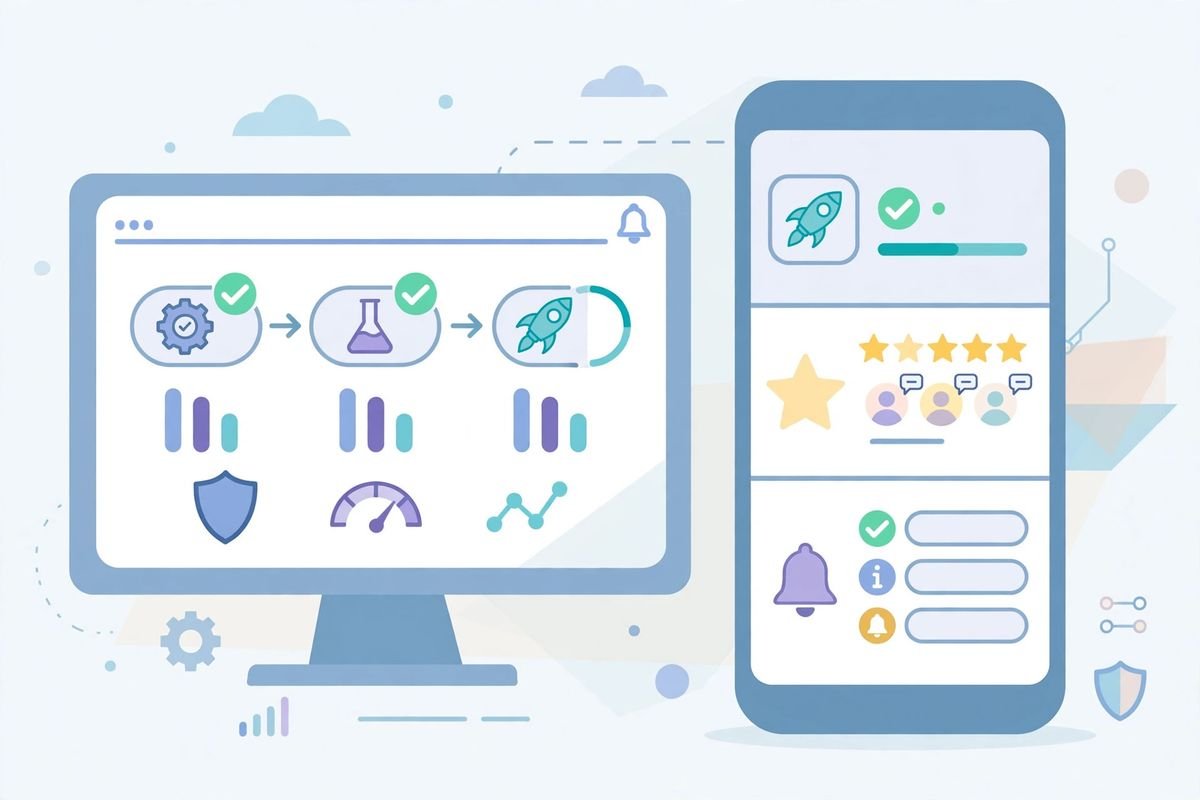
Be honest about the boundary — these are miserable and error-prone on a phone:
The rule: reading on phone, writing on desktop. Respect it and mobile management is pure upside.
The table below summarises which tasks suit a phone and which need a desktop:
| Task | Phone or desktop |
|---|---|
| Review triage and replies (Grow → Reviews) | Phone |
| Vitals glances (Quality → Android vitals) | Phone |
| Inbox and policy notices | Phone |
| Statistics and financial dashboards | Phone (readable; deep analysis belongs on desktop) |
| Creating releases and uploading bundles | Desktop |
| Policy declarations | Desktop |
| Store listing edits | Desktop |
| Users and permissions | Desktop |
| Financial setup (tax forms, bank details) | Desktop |
Since there’s no official app with push notifications, build your own alert layer:
This setup gives you faster awareness than most developers had with third-party “console apps” — without handing credentials to strangers.
Phone-based console access raises the stakes — your developer account now travels in your pocket:
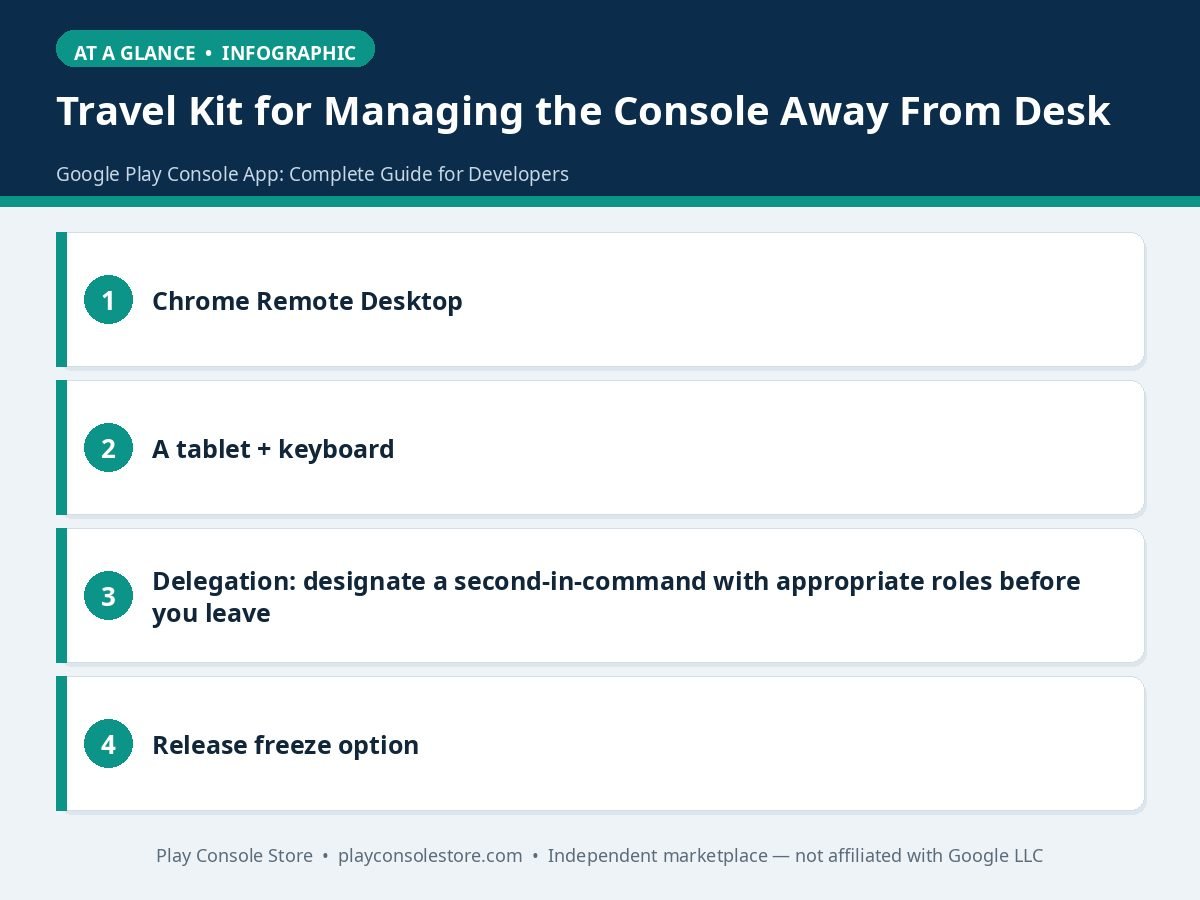
For trips, conferences, and holidays, pack this digital kit:
8:00 — phone: overnight reviews triaged over coffee, two 1-star replies posted. 12:30 — phone: vitals glance during lunch; rollout at 20% holding steady. 15:00 — desktop (back at desk): promote rollout to 50%, upload the next internal build. 21:00 — phone: policy inbox checked, nothing urgent; vitals still green. Total desk time for console ops: 20 minutes. That’s the realistic shape of phone-first console management — the phone handles awareness and response, the desktop handles action.
The table below summarises that mobile-managed day:
| Time | Device | Activity |
|---|---|---|
| 8:00 | Phone | Overnight reviews triaged; two 1-star replies posted |
| 12:30 | Phone | Vitals glance during lunch; rollout at 20% holding steady |
| 15:00 | Desktop | Promote rollout to 50%; upload the next internal build |
| 21:00 | Phone | Policy inbox checked, nothing urgent; vitals still green |
Mobile management fails when developers push it past its boundary. Red lines: never approve a production release from your phone (misread validation errors have shipped broken builds), never edit policy declarations on mobile (a truncated data-safety answer takes weeks to remediate), and never change user permissions between meetings (role mistakes are silent until they cause incidents). The discipline is simple: if the action is reversible and informational, phone is fine; if it’s consequential and hard to undo, wait for the desk. Your future self — not debugging a 2 AM mis-tap — will thank you.
Test your kit before you need it. Before any trip, verify Chrome Remote Desktop connects, confirm the tablet renders the console’s key pages, and do a dry run of the vitals-check flow on your phone. Discovering gaps during an actual incident is how bad weeks happen. Google’s Play Console help center documents which notification options you can configure for mobile awareness.
No — Google publishes no console mobile app. Use play.google.com/console in your mobile browser, and avoid third-party “console apps,” which are often credential harvesters. Our console app guide details the fakes.
Review replies, vitals monitoring, inbox/policy notices, and statistics dashboards. Anything involving releases, declarations, listings, permissions, or financial setup belongs on a desktop.
There’s no native push — enable email notifications at Setup → Notifications and mark the senders as priority in your mail app. Teams can forward critical alerts to a shared channel for on-call coverage.
Yes — the halt control in the release dashboard works in mobile browsers. During staged rollouts, keep the console bookmarked on your phone precisely for this.
Yes, with the checklist above: screen lock, encryption, app-based 2SV, no saved owner passwords on shared devices, and remote wipe configured. The bigger risk is third-party “console apps,” not the official mobile web.
The Google Play Console app you carry is the one in your browser — and it’s enough. Reviews answered in hours, vitals checked twice daily during rollouts, policy notices read the hour they arrive: that’s the competitive edge of mobile console management, available today with zero additional software. Keep the heavy work on desktop, keep the security checklist tight, and your phone becomes mission control instead of a liability.
Play Console Store is an independent marketplace helping Android developers run Play Console from anywhere — setup, mobile workflows, security, and publishing support. Manage smarter.