

November 26, 2026

Search for a Google console app and you’ll find a confusing mess: third-party apps claiming to be the “Play Console app,” outdated forum threads, and APK download sites offering “official” clients. Here’s the definitive answer for 2026: Google does not publish an official Play Console mobile app — not for Android, not for iOS. This guide explains what actually exists for mobile access, which “console apps” are dangerous fakes, and how to run your publishing workflow safely from your phone.
In short: Google publishes no official Play Console mobile app for Android or iOS — the console is web-only at play.google.com/console. Any app calling itself the console app is third-party or fake, and some harvest credentials. Use your mobile browser for reviews, vitals and inbox checks, and save releases, declarations and listing edits for a desktop.
Google Play Console is a web application at play.google.com/console. Google has never released a native mobile client for it, and there is no indication one is coming. This surprises developers because nearly every other Google service (Gmail, Drive, Analytics, AdMob) has a polished mobile app — but Play Console, with its complex release workflows and policy declarations, remains desktop-web-first.
What this means in practice:
The Play Store and sideloading sites host several categories of fakes trading on this exact search:
The rule: if it’s not at play.google.com/console in your own browser, it’s not the console. Check the developer name on any suspicious listing — Google’s official apps are published by “Google LLC,” and Google LLC publishes no console app.
The table below summarises the main fake types described above:
| Fake type | What it is / the risk |
|---|---|
| Credential harvesters | Convincing Play Console branding whose “login” screen sends your Google credentials to a thief — an account-takeover vector |
| WebView wrappers | Just an embedded browser pointed at play.google.com/console, padded with ads and analytics SDKs, granting an unknown middleman full session access |
| “Console companion” utilities | Promise push notifications for reviews or sales, but require your credentials or broad OAuth scopes |
| Outright clones | Found on third-party APK sites, often bundled with spyware |
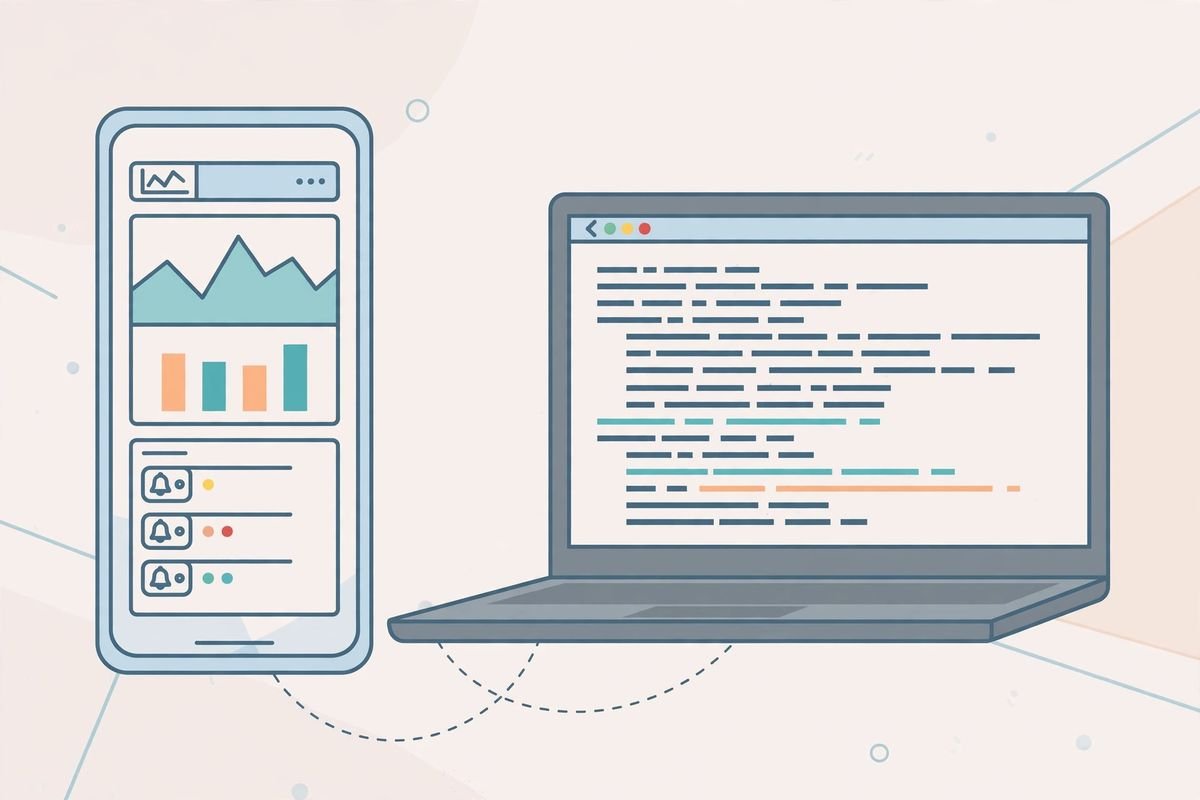
No native app doesn’t mean no mobile access. The Play Console web app works in mobile browsers, and several workflows are genuinely practical on a phone:
The 80/20 rule for mobile console use: if the task is reading (reviews, vitals, inbox, stats), your phone is fine. If the task is writing (releases, declarations, listings, permissions), wait for a bigger screen. Developers who respect this boundary get the convenience without the mis-tap disasters — a wrongly toggled rollout percentage or a truncated data-safety answer can take weeks to unwind.
The table below summarises which tasks suit mobile and which need a desktop:
| Task | Mobile or desktop |
|---|---|
| Review monitoring and replies | Works well on mobile |
| Vitals glances | Works well on mobile |
| Inbox and policy notices | Works well on mobile |
| Statistics dashboards | Works well on mobile |
| Creating releases and uploading bundles | Use a desktop |
| Policy declarations | Use a desktop |
| Store listing edits | Use a desktop |
| Users and permissions changes | Use a desktop |
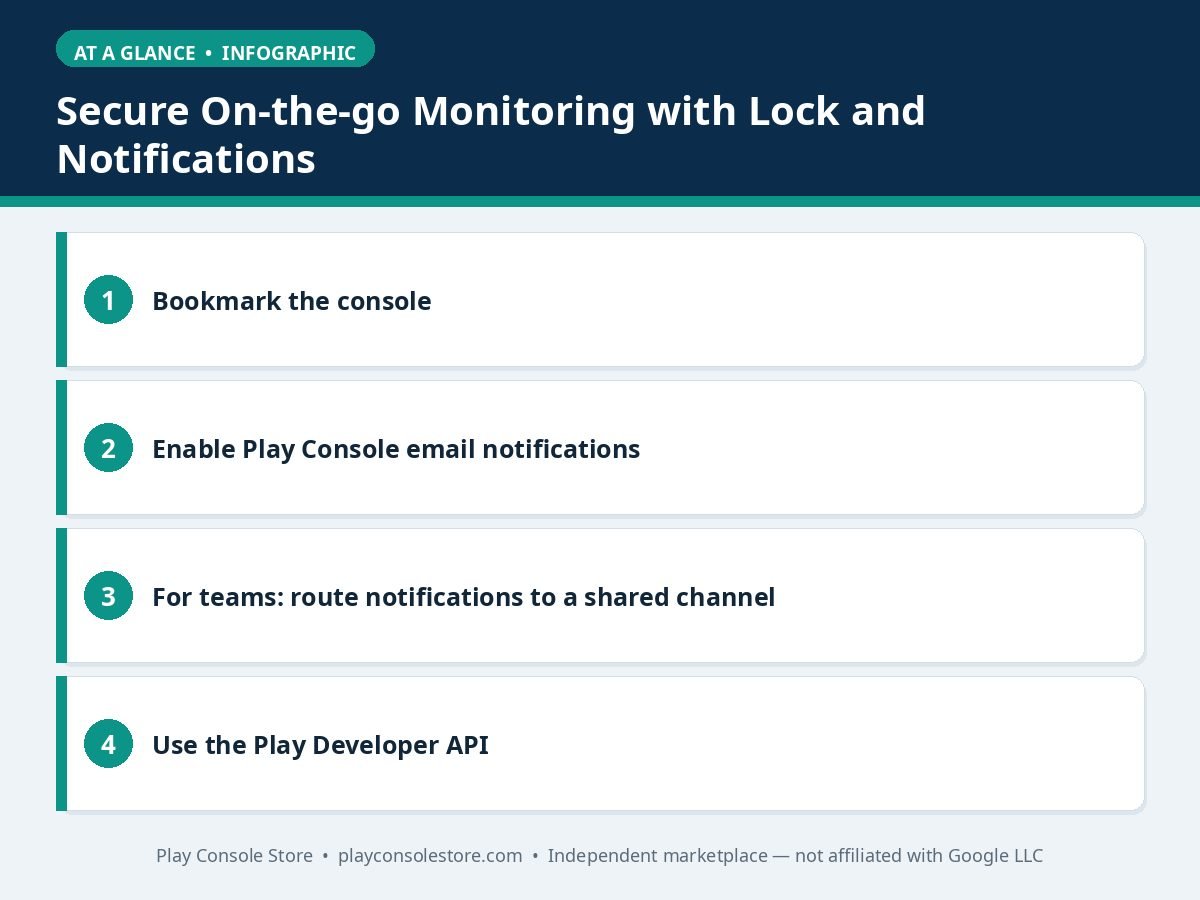
A practical mobile setup for a working developer:
Tablets deserve a mention: on a 10″+ tablet with a keyboard, the full web console is genuinely usable — Chrome on Android tablets renders the desktop layout well enough for releases and declarations in a pinch. It’s the closest thing to the console app that doesn’t exist, and unlike sideloaded fakes, it’s just the real site. If you travel frequently, a small tablet with a keyboard folio covers most console work without carrying a laptop.
This gives you 90% of what a hypothetical official app would do, with none of the credential risk.
For the workflows that genuinely need a desktop (releases, declarations, listing edits), traveling developers have options:
Our Play Console mobile management guide goes deeper into running publishing from your phone day to day.
Understanding why there’s no Google console app helps you stop waiting for one:
None of this is likely to change. Treat the web console + notifications as the permanent setup and build your workflows around it.
No. Google publishes no official Play Console mobile app for Android or iOS. The console is web-only at play.google.com/console. Apps claiming otherwise are third-party or malicious.
Yes, via your mobile browser at play.google.com/console. Reviews, vitals, inbox, and statistics work well on mobile; releases, policy declarations, and listing edits are best done on desktop.
No — it’s not from Google (check the developer name; Google LLC publishes no console app). At best it’s an ad-filled web wrapper; at worst it’s a credential harvester. Uninstall it and use your browser.
Google has never announced one, and the console’s complexity makes a full-featured mobile client unlikely. The mobile web experience plus email notifications covers the realistic on-the-go needs.
Enable email notifications at Setup → Notifications in Play Console (on desktop). New reviews, vitals alerts, and policy messages arrive by email, which your phone already handles perfectly.
The Google console app you want doesn’t exist — and the ones pretending to be it are the actual danger. The good news: between the mobile-friendly web console, email notifications, and a sensible division of phone-vs-desktop workflows, you can monitor and manage your apps from anywhere without ever typing your credentials into a stranger’s app. Bookmark the real console, skip the fakes, and keep the heavy work on a desktop.
Play Console Store is an independent marketplace helping Android developers with Play Console setup, mobile publishing workflows, and account security. Get publishing help.