

November 21, 2026

When you can’t sign in to your Google developer account, the stakes are higher than a locked email: your apps, your signing keys, your revenue, and your ability to respond to policy warnings are all behind that login. And the recovery path has traps — wrong answers extend lockouts, impatient retries trigger longer blocks, and well-meaning “help” from unofficial sources leads to phishing.
This is the account recovery walkthrough: the full recovery process step by step, what to do when each recovery factor is missing, how to handle a compromised developer account, and the prevention setup that makes recovery a non-event. For general login troubleshooting, see our Google developer login guide; for sign-in hardening, our sign-in security guide.
In short: Locked out of your Google developer account? Work the scenarios in order: reset the password, use backup codes or another second factor, then run account recovery from a device and network you have used before. If compromised, change the password, sign out sessions, re-enroll 2FA and audit users, API keys and releases. Prevention takes 15 minutes.
Recovery differs by scenario — pick yours:
The table below summarises the recovery scenarios:
| Scenario | Situation | Path |
|---|---|---|
| A | Forgot password | Password reset flow |
| B | Lost second factor (phone/authenticator gone) | Backup codes → recovery flow |
| C | No recovery options work | Full account recovery with knowledge questions |
| D | Account compromised | Secure-and-recover protocol |
| E | Can sign in to Google, but console shows no developer access | Wrong Google account, not a sign-in issue |

Takes minutes when recovery contacts are current. If you don’t recognize the recovery phone/email shown (masked), you’re in Scenario C.
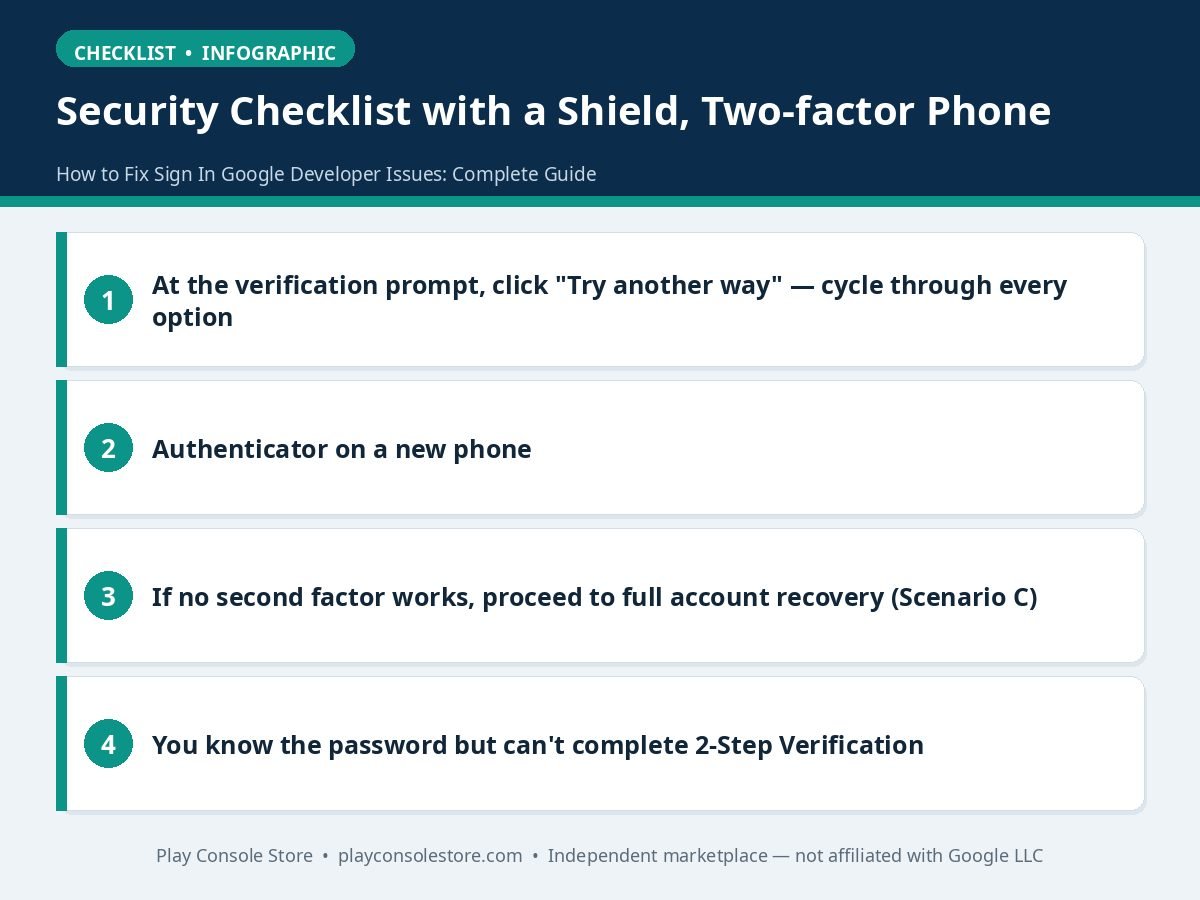
You know the password but can’t complete 2-Step Verification:
When standard options fail, Google’s recovery flow verifies you by what you know:
What increases success: familiar device/network, accurate old passwords, patience (one careful attempt beats five rushed ones — repeated failures trigger cooldowns).
What decreases it: VPNs, new devices, guessing wildly at answers, and having someone else attempt recovery for you.
If you suspect someone else accessed your account (unknown sessions, changed settings, unfamiliar releases), move fast — a hijacked developer account can push malware to your users:
Speed matters more than completeness in the first hour: lock the attacker out first, audit second.
The table below summarises the compromise audit areas:
| Audit area | What to check |
|---|---|
| Users and permissions | Setup → Users and permissions — remove unknown users |
| API access | Setup → API access — rotate all service-account keys |
| Release tracks | Check for unfamiliar releases; halt anything suspicious |
| Financials | Payments profile for changed bank details; earnings reports for anomalies |
| App integrity | Verify no malicious updates shipped; review recent release notes and vitals for anomalies |
Once you’re back in, make the next lockout impossible:
Our team permissions guide covers the multi-user side of this checklist.
Honestly, recovery is the failure state — prevention takes 15 minutes: enable 2FA with an authenticator, print backup codes, add recovery contacts, register a security key, and invite a backup admin. Do it today, before you need it. Every developer who has endured the 5-day manual recovery process wishes they’d spent those 15 minutes earlier.
Google’s official recovery help: support.google.com/accounts.
When a team member (not the owner) loses access, the admin’s job is to keep the project moving while they recover:
Teams with documented recovery roles resolve access incidents in hours; teams without them lose days to confusion about who can do what. Our team permissions guide covers the role structure that makes this possible.
When sign in Google developer access fails, work the scenarios in order — password reset, second-factor fallbacks, full account recovery from familiar devices, compromise protocol — and never create a duplicate account mid-recovery. Print backup codes, register a second key, and add a backup admin now. Fifteen minutes of prevention beats five days of recovery.
Minutes if your recovery phone/email work; 3–5 business days for the manual verification path when no recovery factors are available. Developer accounts get no priority lane — the process is the same, so prevention (backup codes, security keys) is the real time-saver.
No. Use backup codes first; if those are gone, run full account recovery from a familiar device/network and answer the knowledge questions. If the old phone is accessible at all, transfer authenticator accounts via QR export before wiping it.
Recover and change the password immediately, then sign out all other sessions (Security → Your devices). Speed first: lock the attacker out, then audit users, API keys, releases, and payments. A hijacked console can push malicious updates to your users within minutes.
No — there is no expedited support lane for developer account recovery, and no phone number that skips verification. The recovery flow is the process. This is why the prevention checklist (backup codes, second key, backup admin) matters so much.
No. A second account fragments your identity, risks associated-account flags, and doesn’t help — your apps and history live on the original account. Wait out the recovery process; it resolves in the large majority of cases.
Signing in to your Google developer account should be boring infrastructure — and recovery should be a story you never tell. Work the scenarios in order (password → second factor → full recovery → compromise protocol), attempt recovery from familiar devices, and when you’re back in, spend the 15 minutes on prevention that makes the next scare impossible.
Play Console Store is an independent marketplace helping Android developers with account recovery planning and console security. Explore our Google Play services to make account lockouts a non-event.