

November 17, 2026

Nothing stalls a launch like being locked out of your own Google developer login. The symptoms vary — “Couldn’t sign you in,” endless redirect loops, verification codes that never arrive, or the dreaded “this account doesn’t have developer access” — but the root causes cluster into a handful of fixable problems. This guide walks through each one with the exact steps to resolve it, ordered from most common to most obscure.
In short: Google developer login issues almost always trace to one of seven causes: the wrong Google account, password or 2FA trouble, browser state, a lost second factor, an enforcement action, network suspicion, or full lockout. Work through them in order, starting by checking the email on your console avatar, and attempt recovery from a familiar device and network.
Quick orientation: your Google developer login is just your Google account sign-in — there is no separate developer password. Every fix below therefore starts at accounts.google.com, not at some developer-specific login page. If you need the broader access picture, see our Play Google Com console access guide.
Symptom: “You don’t have access” / “No developer account found” even though you registered.
Cause: the single most common login issue. Your developer registration is tied to one specific Google account, but your browser is signed in with another (personal Gmail instead of work account, or vice versa).
Fix:

Symptom: Google rejects your password, or keeps looping back to the sign-in screen.
Fixes in order:
Never enter your Google password on any site except accounts.google.com or a genuine Google sign-in popup. Phishing pages mimicking developer login screens are a constant threat to developer accounts specifically because they control revenue and signing keys.
Symptom: play.google.com/console bounces between URLs, shows a blank page, or partially loads.
Cause: almost always browser state — corrupted cookies, conflicting extensions, or cached redirects.
Fix:
Symptom: you can’t complete the second verification step — lost phone, no backup codes, changed number.
This is the most serious common lockout, because Google deliberately makes it hard (that’s the security working as designed).
Recovery path:
Prevention (do this today): print backup codes and store them somewhere safe; add a recovery email and recovery phone; enroll a second 2FA method (authenticator app + security key).
Symptom: sign-in works, but the console shows your developer account as suspended or terminated.
Important distinction: this is not a login problem — it’s an enforcement action. No password reset fixes it.
What to do:
Our 10 mistakes that get accounts banned explains the enforcement patterns behind most suspensions.
Symptom: “We’ve detected unusual activity” / repeated verification challenges / sessions dying constantly.
Cause: Google’s risk engine dislikes IP addresses that change rapidly (VPNs hopping countries), datacenter IPs (cloud VMs), and shared corporate egress IPs with bad reputations.
Fix:
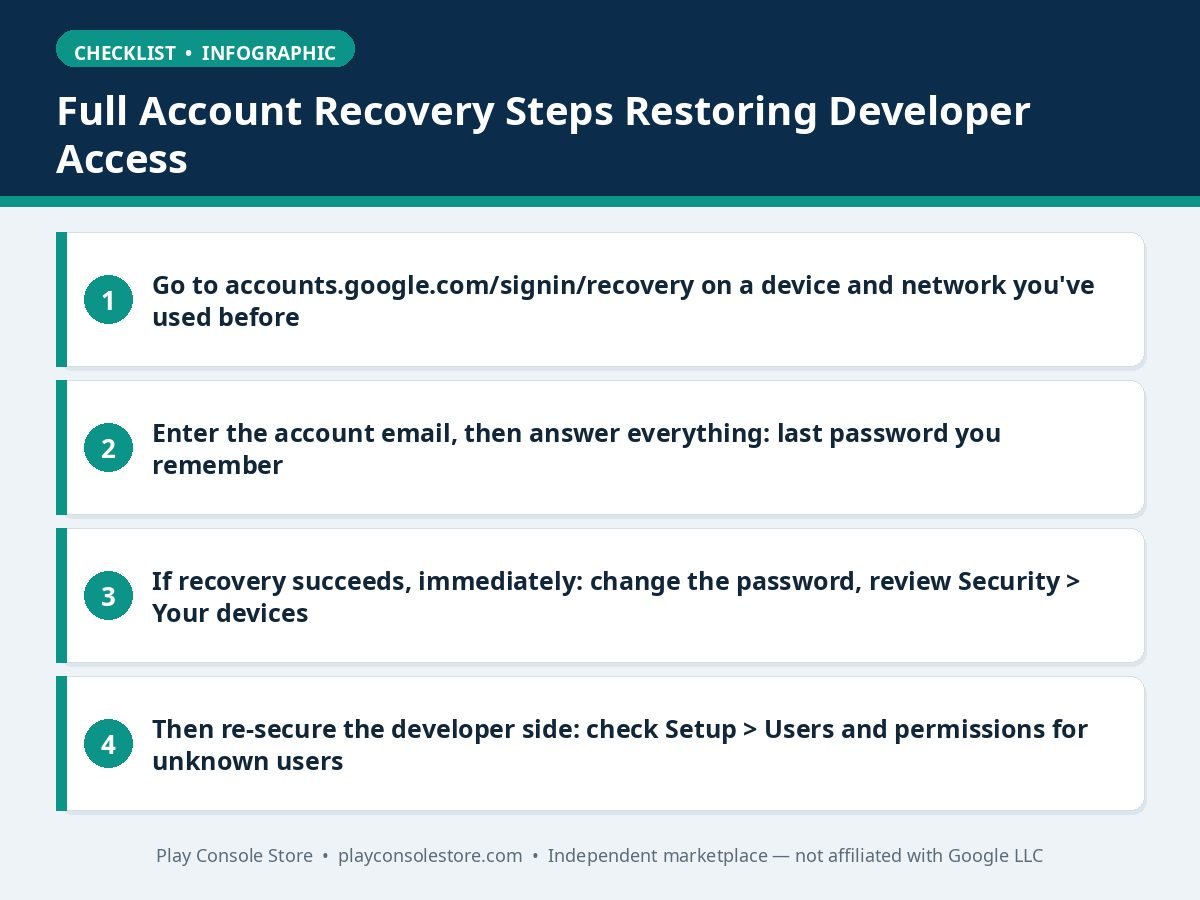
When nothing above works, run Google’s full account recovery flow:
Google’s official account-recovery help is at support.google.com/accounts — the authoritative reference when this guide’s steps aren’t enough.
Nearly every Google developer login issue traces to one of seven patterns: wrong account, password or 2FA trouble, browser state, lost second factor, enforcement action, network suspicion, or full account lockout. Work them in order, attempt recovery from familiar devices, and keep backup codes printed offline. Prevention — a second admin, current recovery contacts, hardware keys — turns lockouts into non-events.
The table below summarises the seven login issues and their fixes:
| Issue | Typical symptom | First fix |
|---|---|---|
| Wrong Google account | “You don’t have access” / “No developer account found” | Check the avatar email at play.google.com/console and sign in with the registered account |
| Password and verification problems | Password rejected or sign-in loops | Reset the password at accounts.google.com/signin/recovery; use “Try another way” for 2-Step Verification |
| Redirect loops and blank pages | Console bounces between URLs or loads blank | Test in an incognito window, then clear google.com cookies and disable blockers |
| 2-Step Verification lockout | Can’t complete the second step | Use saved backup codes, ask a Workspace admin to reset 2FA, or run account recovery |
| Account disabled or suspended | Sign-in works but the developer account shows as suspended or terminated | Read the enforcement email and file an appeal through its official link; do not create a new account |
| Corporate networks, VPNs, “unusual activity” | Repeated verification challenges, sessions dying | Sign in from a stable connection without VPN, or stick to one VPN server location |
| Full account lockout | Nothing above works | Run the full account recovery flow from a device and network you’ve used before |
Search all your Gmail inboxes for “Google Play” — the registration welcome email and $25 payment receipt went to the owning address. Alternatively, sign in to each candidate account at play.google.com/console; the owner sees the developer dashboard, others see the registration prompt.
Your sign-in looks risky to Google’s systems: new device, new location, VPN IP hopping, or cleared cookies. Sign in consistently from one device and network for a few weeks and challenges fade. Persistent challenges on a stable setup warrant a security check of the account.
Yes, via accounts.google.com/signin/recovery — answer the knowledge questions (old passwords, creation date, recovery email). Success rates are highest from a previously-used device and network. Without any recovery options, expect a multi-day manual verification process.
No. The Play Console uses your Google account credentials — there is no developer-specific password. Anyone asking for your “developer console password” on a non-Google site is phishing. All sign-ins happen at accounts.google.com.
No — that’s an enforcement action, not an authentication problem. Follow the appeal link in the suspension email, fix the cited policy violation, and do not create a replacement account while appealing (ban evasion gets the new account terminated too).
Google developer login issues look varied but resolve into patterns: wrong account (check the avatar email), browser state (incognito test), 2FA lockout (backup codes + recovery flow), and network suspicion (stable connection). Work the list in order and you’ll resolve 95% of lockouts without ever contacting support — because for developer accounts, there mostly isn’t support to contact.
Play Console Store is an independent marketplace helping Android developers with account access, recovery planning, and console security. Explore our Google Play services to make lockouts a non-event for your team.