

November 16, 2026

When developers search for the “play google com console,” they’re looking for one thing: the front door to Google’s Android publishing platform. The exact address is play.google.com/console — that’s the Google Play Console, the web dashboard where Android developers register, upload apps, manage releases, and track performance. But getting there and getting in isn’t always as simple as typing a URL: wrong bookmarks, signed-in personal accounts, expired sessions, and regional redirects trip up developers every day.
This guide covers everything about accessing the Play Google Com console correctly — the official URLs, sign-in flow, switching between multiple developer accounts, using the mobile app, and fixing the access errors that lock developers out at the worst possible moment.
In short: The Play Google Com console is Google Play Console, and its official address is play.google.com/console. Sign in with the Google account that owns your developer account, complete 2-Step Verification, and you land on the All apps dashboard. Only ever sign in at play.google.com or accounts.google.com — any other domain asking for console credentials is a phishing attempt.
Bookmark these — they’re the only addresses you should ever use to reach the console:
Security warning: only ever sign in at play.google.com or accounts.google.com. Phishing sites mimic the console login with lookalike domains (play-google-console.com, googleplayconsole.net). Check the address bar before entering credentials — Google will never ask you to sign in to the console from any other domain. For the full publishing walkthrough once you’re inside, see our Google Play Console complete guide.
The table below summarises the official console addresses:
| Purpose | Address |
|---|---|
| Main dashboard | play.google.com/console |
| Sign-up page | play.google.com/console/signup |
| Developers homepage | play.google.com/console/about |
| Help center | support.google.com/googleplay/android-developer |
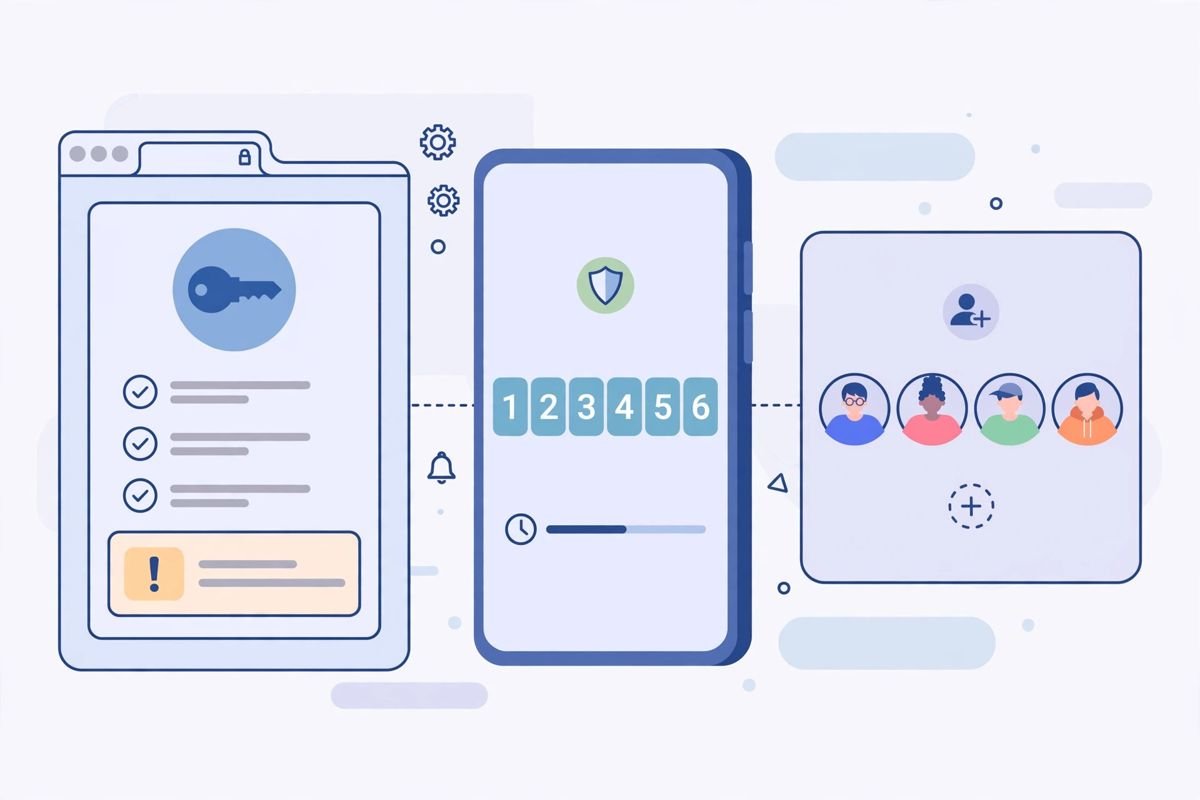
The console doesn’t have its own username/password system — it uses Google account sign-in. The Google account you sign in with becomes (or is linked to) your developer identity, so choose deliberately:
Go to play.google.com/console. If you’re not signed in, Google redirects you to accounts.google.com. Enter your email, password, and complete 2-Step Verification if enabled (it should be — developer accounts are high-value targets). After authentication, you land on the All apps dashboard.
First-time visitors without a developer account see the registration flow: choose personal or organization account type, complete identity verification, pay the $25 registration fee, and accept the Developer Distribution Agreement. Verification typically takes a few hours to a couple of days. Until it’s complete, most console sections show as locked or pending.
Freelancers and agencies often juggle several developer accounts — their own plus clients’. The console handles this through Google’s account switcher plus an invitation system:
Common pitfall: being signed in to five Google accounts in one browser and not knowing which one owns the developer account. If the console shows “no developer account found,” you’re almost certainly signed in with the wrong Google identity — check the avatar email before assuming your account is gone.
Google offers the Play Console app (Android and iOS) as a companion to the web dashboard. It’s genuinely useful for:
What it can’t do: create developer accounts, upload app bundles, complete policy declarations, or manage users and permissions. For those, you need the desktop web console. Think of the mobile app as mission-control telemetry, not the cockpit.
To install it, search “Google Play Console” in the Play Store or App Store and sign in with the same Google account that owns your developer account. If you manage multiple developer accounts as an invited user, they all appear in the app’s account switcher.
You signed in with a Google account that has no developer registration. Either register at play.google.com/console/signup or switch to the Google account that owns the developer account (check the avatar email).
Usually caused by corrupted cookies or overzealous extensions. Fix: open an incognito window and sign in fresh. If that works, clear cookies for google.com in your main browser and disable ad-blockers on play.google.com — several popular blockers break the console’s JavaScript.
The console times out idle sessions for security. If it happens constantly (not just after idleness), check whether a VPN or corporate proxy is rotating your IP — Google treats rapid IP changes as suspicious and kills sessions. Whitelist google.com in the VPN or use a stable connection for console work.
Your invitation was revoked, expired, or never accepted. Ask the account owner to re-invite you under Setup → Users and permissions. Invitations expire after a set period, and owners sometimes remove freelancers after projects end without notice.
In some regions, play.google.com redirects through a country-specific domain or loads slowly. The console itself is global — your developer account works identically everywhere — but if pages fail to load, try a direct connection without VPN first, then re-enable it. Our Play Console login troubleshooting guide covers deeper authentication fixes.
The table below summarises the common access problems and their fixes:
| Problem | Likely cause | Fix |
|---|---|---|
| “This account isn’t a developer account” | Signed in with a Google account that has no developer registration | Register at play.google.com/console/signup, or switch to the Google account that owns the developer account |
| Redirect loops and blank pages | Corrupted cookies or overzealous extensions | Use an incognito window; if that works, clear cookies for google.com and disable ad-blockers on play.google.com |
| Session expired / signed out unexpectedly | VPN or corporate proxy rotating your IP | Whitelist google.com in the VPN, or use a stable connection for console work |
| “Access denied” on a client’s account | Invitation revoked, expired, or never accepted | Ask the account owner to re-invite you under Setup → Users and permissions |
| Regional redirect issues | play.google.com redirects through a country-specific domain or loads slowly | Try a direct connection without VPN first, then re-enable it |

The official URL is play.google.com/console. New developers register at play.google.com/console/signup. Only sign in at play.google.com or accounts.google.com — any other domain asking for your console credentials is a phishing attempt.
You’re signed in with the wrong Google account. The console ties developer registration to a specific Google identity — click your avatar (top right) to check which email is signed in, then switch to the one you registered with or complete registration for the current one.
Yes, via the Play Console app for Android and iOS. It covers statistics, reviews, alerts, and rollout monitoring, but full publishing workflows (uploads, policy declarations, user management) require the desktop web console at play.google.com/console.
Have each client invite your Google account under Setup → Users and permissions, then switch between accounts from the avatar menu. For clean separation, use separate Chrome profiles per client so you never upload to the wrong account.
First try an incognito window to rule out cookie or extension issues. If the problem persists, check for VPN IP rotation (Google kills sessions on rapid IP changes), clear google.com cookies, and disable ad-blockers on play.google.com.
The Play Google Com console lives at one address — play.google.com/console — but using it well means mastering sign-in discipline: the right Google account, clean browser sessions, proper team invitations instead of shared passwords, and the mobile app for on-the-go monitoring. Most “access problems” are really account-confusion problems, and they’re solved in the avatar menu, not in a support ticket.
Play Console Store is an independent marketplace helping Android developers with Play Console setup, account access configuration, and team permission structuring. See our Google Play services if you’d like expert help getting your console access right from day one.