

November 10, 2026

Locked out of Google Play Console? Google Play Console login problems range from a mistyped password to a suspended developer account — and the fix depends entirely on which one you’re facing. This guide walks through every common failure in the order you should try them, from the 30-second account check to account recovery, so you can get back into the console without paying for help you don’t need.
In short: Most Google Play Console login issues are fixed in under five minutes: confirm you’re signing in with the exact Google account that owns the developer account, clear browser state, and check 2-step verification. Suspension, termination, and lost-owner access need the slower recovery paths in this guide.
Roughly half of all ‘login issues’ are wrong-account errors. Google accounts are free and plentiful; developer accounts are not. If you sign in with a personal Gmail when the developer account lives under a Workspace account (or vice versa), Play Console will helpfully offer to create a brand-new developer account — and charge you $25 for the privilege. Don’t fall for it.
Team members: you must accept the invitation email first; the invite goes to the specific Google account your admin entered. If you sign in with a different Google account, you won’t see the app — accept the invite from the right inbox.
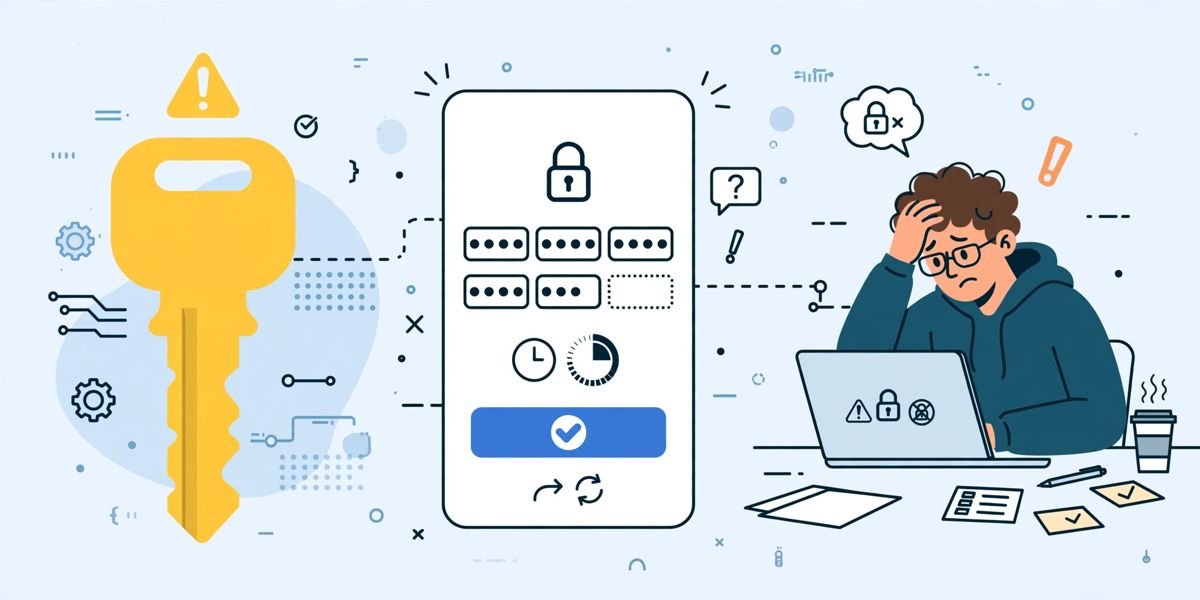
Google’s generic sign-in failure usually means one of three things:
If 2-step verification (2SV) codes aren’t arriving, or the console keeps asking for a code you already entered, the account’s second factor is the problem, not Play Console:
Prevention beats recovery: every console owner should enroll two second factors (e.g., authenticator app + security key) and store backup codes offline. A single second factor is a single point of failure for your entire app business.
A surprising number of console login failures are local browser state:
If play.google.com/console loads but shows a blank page or spins forever, it’s usually a stale service worker or a blocked third-party cookie — clearing site data (step 1 above) fixes it in most cases.
If you can sign into Google but Play Console shows a suspension or termination notice, this is not a login bug — it’s enforcement. The distinction matters because the fix is an appeal, not a password reset:
Our developer account guide explains the enforcement ladder and how to appeal.
Invited users hitting access errors should check:
The table below summarises the fixes covered so far:
| Problem | First fix in this article |
|---|---|
| Wrong Google account | Sign out completely and sign back in with the account that owns the developer account |
| “Couldn’t sign you in” / password errors | Use account recovery; wait out the rate limit (30–60 minutes) |
| 2-step verification loop | Check the phone clock; use backup codes or start account recovery |
| Browser or cookie problem | Clear site data for play.google.com/console; try incognito |
| Account suspended or terminated | Read Policy status and appeal; do not create a replacement account |
| Team member can’t access | Accept the invite from the right inbox; confirm the assigned role |
Rarely, the issue is on Google’s side. If sign-in fails identically on multiple devices, browsers, and networks, check Google’s service status and the Play Console status page, and search recent reports — if it’s an outage, there’s nothing to fix on your end. Never pay a third party offering to “fix” a Google outage; legitimate help comes only through the official support channels below.
Most Google Play Console login issues are self-service — account recovery, backup codes, and browser fixes cover nearly all of them. Contact support only when: you’ve exhausted account recovery and can’t pass identity verification; your account is suspended and the appeal path is unclear; or a team invite never arrives despite correct addresses.
What Google support can help with: recovery guidance for a locked account, explaining a suspension, and resending verification or invitation emails. What they can’t do: bypass 2-step verification, reset your password, or restore a terminated account.
The contact paths, in order:
What to include in every ticket: the exact error message (screenshot it), the email of the affected Google account, whether it’s the owner or an invited user, and what you’ve already tried. Attach screenshots — vague tickets get vague answers.
Response expectations: automated acknowledgment is immediate; human replies typically take 1–3 business days. If a reply asks for documents, respond promptly — verification tickets expire.
The table below summarises which support channel to use:
| Channel | Use it for |
|---|---|
| Inside Play Console | App and policy questions — available only once you can sign in |
| Play Console Help Center | Official recovery flows and contact forms |
| Google account recovery | Password and 2SV lockouts |
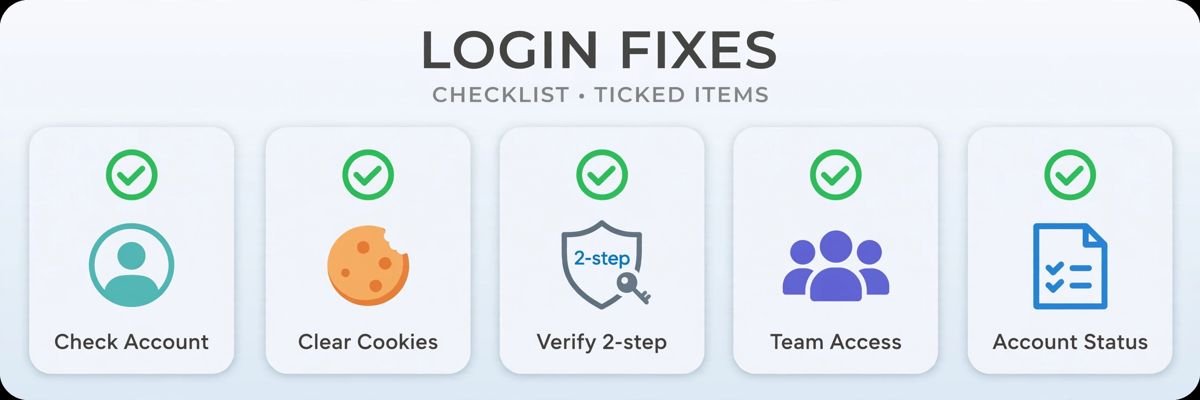
The most common causes are signing in with the wrong Google account, a forgotten password, a 2-step verification problem, or stale browser data. Start with the account check in Fix 1 — if Play Console offers to create a new developer account, you’re in the wrong account.
Check your phone’s clock (automatic date & time on), use a fresh authenticator code or a backup code, and if your second factor is lost entirely, start Google account recovery and choose “Try another way” until it offers identity verification.
Don’t create a replacement account. Open Policy status in the console, read the violation and deadline, fix the problem or submit the requested documents, and appeal through the official process. Our developer account guide explains the enforcement ladder.
Yes. Google may flag sign-ins from VPN exit nodes, datacenter IPs, or unfamiliar countries as suspicious and block them. Sign in from your usual device and network without the VPN — if it works, the VPN was the trigger.
New personal accounts must complete 14 days of closed testing with at least 12 testers before production access is granted. Until that requirement is met, publishing features stay locked even though you’ve paid. Check Testing → Closed testing for your progress.
If another admin exists, they can promote a new owner under Setup → Users & permissions. If no admin remains, you’ll need to regain access to the owner’s Google account or contact Google Play developer support with proof of ownership — see our access recovery guide for the full process.
Google Play Console login issues look alarming but usually have unglamorous causes: the wrong account, a stale cookie, a skewed clock, or a lost second factor. Work through the fixes in order, keep two second factors enrolled, and keep backup codes somewhere safe — the cheapest login fix is the one you never need.
Play Console Store helps Android developers recover and structure Play Console access — from account setup and verification to team permissions and lost-owner recovery. Explore our Google Play services or read our access recovery guide for lost-owner scenarios.