

November 27, 2026

Every Android developer eventually learns the same lesson: shipping isn’t uploading — it’s release management. The Android app console (Google Play Console) gives you four release tracks, staged rollouts, track promotion, and rollout halting, and the difference between developers who use them well and those who don’t is the difference between calm launches and 1-star disasters. This guide is a deep dive into the release system: what each track is for, how to move builds between them, and the rollout discipline that protects your ratings.
In short: Play Console gives you four release tracks — internal, closed, open and production — plus staged rollouts and a halt button. Builds should flow upward through the tracks, and new accounts must run closed testing for at least 14 days with 12 or more testers. Promote the tested build, roll out in stages, and halt if vitals spike.
Navigate to Release → Testing and Release → Production inside your app’s dashboard. Here’s the full map:
| Track | Testers | Speed | Purpose |
|---|---|---|---|
| Internal testing | Up to 100 (email list) | Minutes–hours | Daily builds, QA, stakeholder previews |
| Closed testing | Email lists / Google Groups | Hours | Beta channel; the 14-day requirement track |
| Open testing | Unlimited (public link) | Hours | Pre-launch buzz, wide device coverage |
| Production | Everyone | After review | The public Play Store listing |
The pipeline principle: builds should flow up — internal → closed → open → production — with each stage catching what the last missed. Developers who upload straight to production are skipping every safety net the console provides.
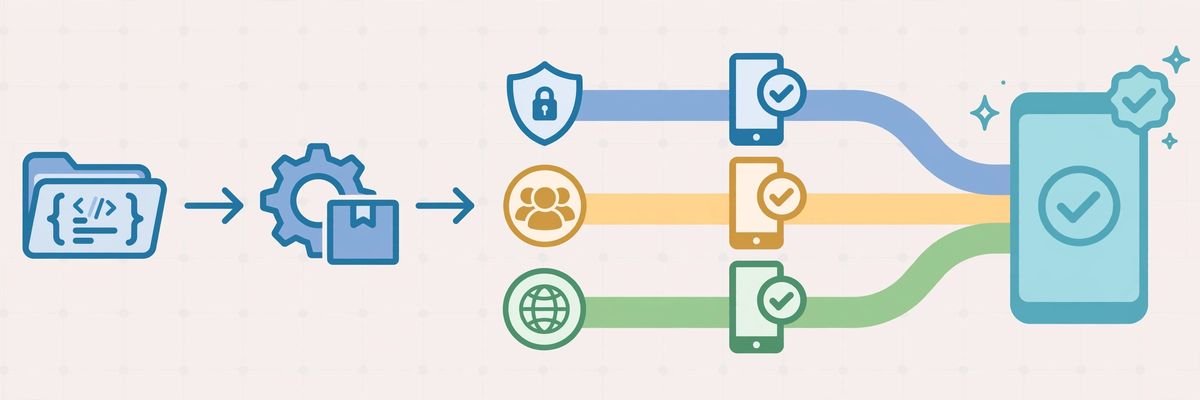
Release → Testing → Internal testing is the fastest distribution channel in the console:
Pro move: automate uploads here from CI/CD via the Play Developer API. Every merged pull request becomes an installable build for QA within the hour — this is how professional teams test continuously. Each upload generates a pre-launch report (automated testing on ~10 real devices) — read it; it’s free QA catching device-specific crashes. For full automation, the Play Developer API documentation covers programmatic uploads from your pipeline.
Release → Testing → Closed testing supports multiple named tracks (e.g., “beta,” “alpha,” “press”) with testers managed via email lists or Google Groups.
The requirement you must know: new personal developer accounts must run closed testing for at least 14 days with 12+ opted-in testers before the production track unlocks. The clock runs on active testers — 12 emails that never opt in don’t count, and neither does uploading a build nobody installs. Start recruiting on day one; this gate is the most common reason launches slip.
Beyond the gate, closed testing remains your permanent beta channel:
If recruiting 12+ real testers sounds daunting, our closed testing coordination services handle it.
Release → Testing → Open testing gives you a public opt-in link — anyone can join, no email list needed.
Release → Production is the Play Store itself. Creating a release here means: upload the .aab (or promote a tested track build), add release notes (under 500 characters, user-facing language), set countries, and send for review.
New apps: 3–7 days review. Updates: typically 24–48 hours. The Publishing overview page (Release → Publishing overview) shows everything pending across your app in one timeline — check it before assuming you’re “stuck.”
Release notes discipline matters more than developers think. Users read them — “bug fixes and improvements” on every release trains users to ignore updates, while specific notes (“fixed the startup crash on Pixel 7, added offline mode”) build trust and reduce support tickets. For major versions, write notes like a mini-announcement: what changed, why it matters, what’s next. It’s free marketing on a page users already visit.
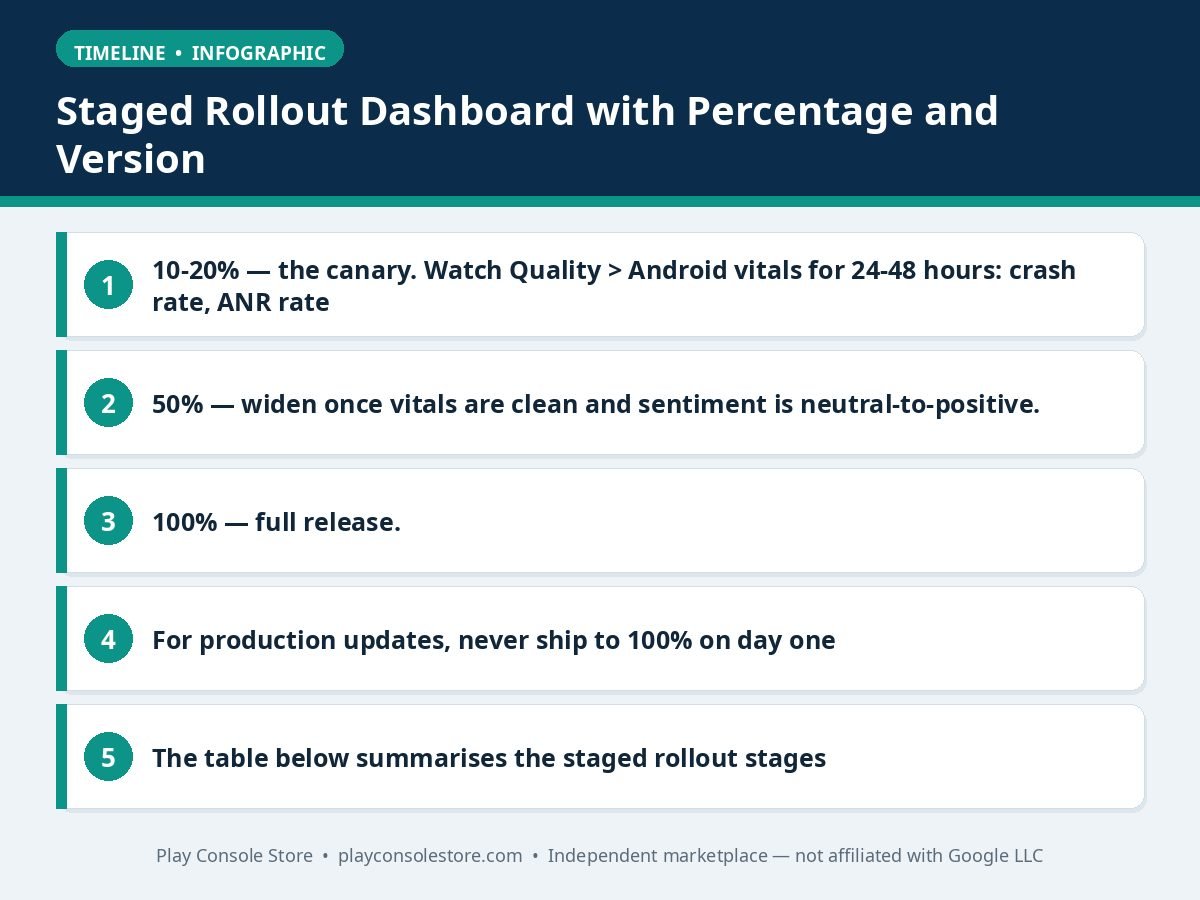
For production updates, never ship to 100% on day one. In the release dashboard, set a rollout percentage:
If something breaks: halt the rollout. The halt button sits right in the release dashboard — use it without hesitation. A halted rollout at 20% is a bad day; a 100% rollout of a crashing build is a ratings catastrophe that takes months to recover from. Google’s bad-behavior vitals thresholds can also suppress your discoverability when crash rates spike, so halting protects visibility too.
For brand-new apps, 100% on day one is fine (no existing users to harm) — but keep vitals open all week regardless.
The table below summarises the staged rollout stages:
| Stage | Rollout | What to do |
|---|---|---|
| Canary | 10–20% | Watch Quality → Android vitals for 24–48 hours: crash rate, ANR rate, and the review stream |
| Widen | 50% | Widen once vitals are clean and sentiment is neutral-to-positive |
| Full release | 100% | Complete the rollout |
| If something breaks | Halt the rollout | Use the halt button in the release dashboard without hesitation |
The meta-lesson: every one of these mistakes is a shortcut around a track, a check, or a percentage. The console’s release system is deliberately frictionful — each stage exists because skipping it has burned thousands of developers before you. Embrace the friction; it’s cheaper than the alternative.
Our publishing walkthrough covers the full pipeline from bundle to store.
Closed testing uses email lists or Google Groups — you control exactly who tests. Open testing uses a public link anyone can join, giving unlimited scale but less control (and public beta reviews). Use closed for the 14-day requirement and betas; open for pre-launch buzz and device coverage.
When creating a production release, set a rollout percentage (e.g., 20%). Only that share of users gets the update. Monitor vitals and reviews, then increase to 50% and 100%. You can halt a rollout at any time from the release dashboard.
You can’t “un-ship” a 100% rollout, but you can immediately ship a new release (a fix or a rollback to the previous build) — which is why keeping the last known-good build ready matters.
A minimum of 14 days with 12+ opted-in, active testers — for new personal developer accounts only. The clock runs on tester activity, not just elapsed time since upload.
Yes — promote the tested build between tracks rather than re-uploading. The identical binary ships, so what you tested is exactly what users get.
The Android app console’s release system is a safety pipeline disguised as bureaucracy: internal for speed, closed for beta rigor, open for scale, production for the public — connected by promotion and protected by staged rollouts and the halt button. Developers who run every release through the pipeline ship boring, successful launches. Developers who bypass it ship excitement, of the wrong kind.
Play Console Store is an independent marketplace helping Android developers with release management, closed testing coordination, and publishing discipline. Ship calmer releases.