

November 25, 2026

Thousands of developers create a Google Play developer account every month, and a remarkable number of them get it wrong on the first try — wrong account type, doomed email choice, verification documents that bounce, cards that decline. Each mistake costs days or weeks. This guide takes a different approach from the usual click-here walkthrough: for every step of creating your account, you’ll learn the mistake that derails it and exactly how to avoid it.
In short: Creating a Google Play developer account takes about 30 minutes of active work plus verification time, but ten predictable mistakes — wrong Google account, wrong account type, sloppy ID photos, D-U-N-S mismatches, prepaid cards — cost days or weeks each. Avoid them and your account verifies cleanly the first time, ready for the 14-day closed test.
The mistake: signing up with whatever Google account is handy — a school address, a client’s domain, an old personal Gmail you barely check.
Why it hurts: your developer account is permanently tied to this Google account. Lose access to the email (graduation, job change, forgotten password with no recovery) and you effectively lose your developer account — there is no ownership-transfer process for Google accounts.
Do this instead: create or designate a long-term address you will control for years (ideally a role-based address for businesses). Enable 2-step verification and generate backup codes before you start signup. Our Google Play Store sign up walkthrough covers the preparation checklist.
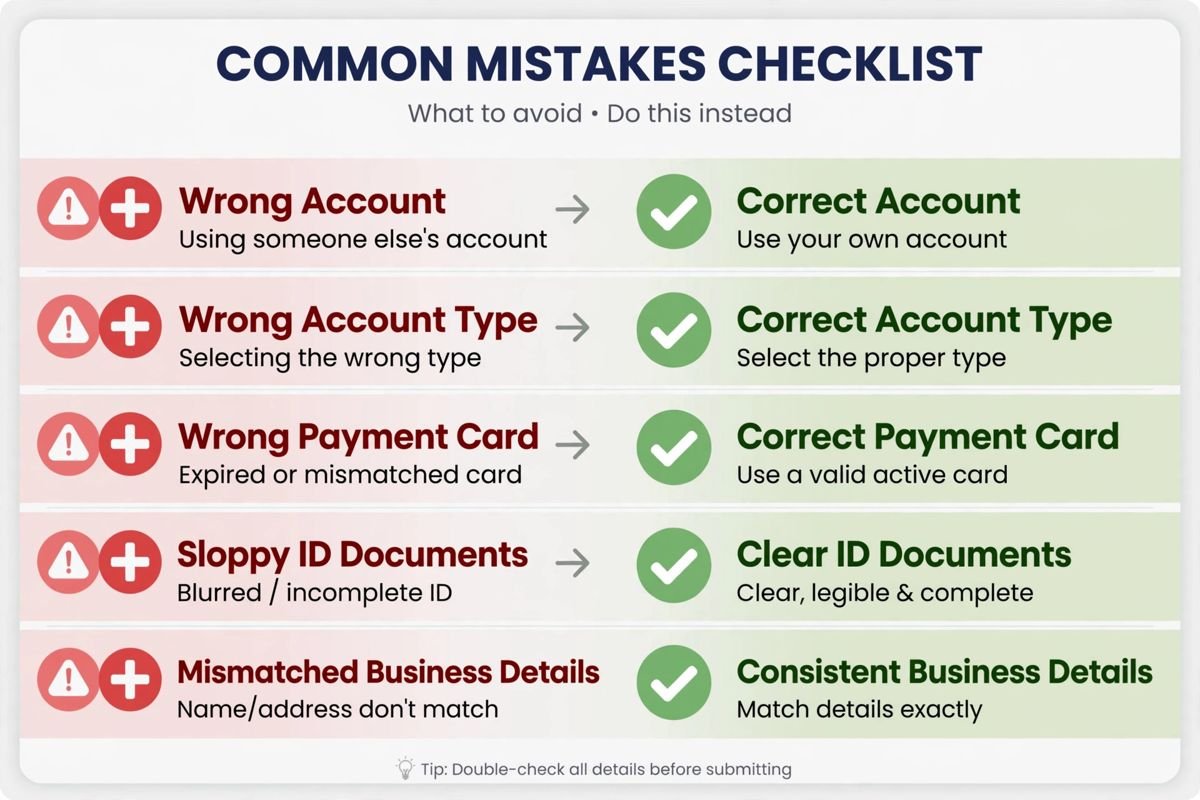
The mistake: picking “personal” because it’s faster, then needing a company listing six months later — or picking “organization” for a hobby project and drowning in D-U-N-S paperwork.
Why it hurts: account type cannot be changed after registration. Switching means a new account, another $25, and migrating apps — disruptive and reputation-resetting (reviews don’t transfer cleanly).
Do this instead: if there’s any realistic chance of commercial publishing within a year — clients, a startup, revenue — choose organization now and start the D-U-N-S process immediately (it’s free, but takes 2–4 weeks). Solo indie with your own name on the listing? Personal is fine — weigh permanence, branding, and verification effort before you commit.
The table below summarises the account-type choice:
| Situation described | Recommended choice |
|---|---|
| Any realistic chance of commercial publishing within a year (clients, a startup, revenue) | Organization — start the D-U-N-S process immediately (free, but takes 2–4 weeks) |
| Solo indie with your own name on the listing | Personal is fine |
The mistake: using a prepaid card, a virtual card, or someone else’s card for the $25 registration fee.
Why it hurts: Google’s billing frequently declines prepaid and virtual cards, and cards not in the account holder’s name trigger fraud flags. A declined payment at this stage can temporarily lock the signup flow.
Do this instead: use a standard credit or debit card in the account holder’s name. If your bank blocks the charge (Google bills through an Ireland entity), authorize it with your bank and retry. Remember: the fee is non-refundable, so get verification-ready before paying. Full cost context in our developer account price breakdown.
The mistake: photographing your ID in bad light, uploading an expired document, or using a name that doesn’t match your developer profile.
Why it hurts: verification rejections add 3–10 days per cycle, and repeated failures push you into manual review queues that move slowly.
Do this instead: lay the ID flat in daylight, capture all four corners with no glare, confirm it isn’t expired, and make sure the legal name matches your signup details exactly. One clean submission typically clears in hours to 2 business days for personal accounts — Google’s identity verification requirements list exactly which documents are accepted.
The mistake: entering a D-U-N-S number whose legal name or address differs even slightly from your business registration — “Ltd” vs “Limited,” a missing suite number, an old address.
Why it hurts: this is the #1 organization verification failure, and each rejection costs a week. Worse, developers “fix” it by resubmitting the same mismatch.
Do this instead: look up your own D&B record first and copy it character-for-character. If the record itself is wrong, correct it at Dun & Bradstreet before submitting to Google — and allow up to 30 days for a brand-new D-U-N-S number to propagate. Our company account setup guide walks through the entire process.
The mistake: freelancers and agencies creating client apps under their own personal developer account because it’s faster than getting the client verified.
Why it hurts: everything is commingled — a policy strike on one client’s app threatens your entire account and every other client’s app. When the relationship ends, transferring the app is messy. And if the client ever needs an organization listing, you’re starting over.
Do this instead: each client owns their own organization account; you work as an invited user with scoped roles (Setup to Users and permissions). It takes longer upfront and saves disasters later.
The mistake: treating 2SV as optional paperwork and planning to “do it later.”
Why it hurts: Google requires it, and the developers who skip it are the ones who get locked out at the worst moment — lost phone, no backup codes, 3–5 business days of account recovery during a launch.
Do this instead: enable 2-step verification on day one with two methods (authenticator app + backup phone or security key), generate backup codes, and store them offline in two places. Keep the full lockout playbook bookmarked — you’ll want it before you need it.
The mistake: rushing through the developer name, contact email, and address fields with placeholder-ish data.
Why it hurts: this information is public on your Play Store listings. A personal home address or an unmonitored email becomes a permanent, visible problem — and changing the developer name later can trigger re-verification.
Do this instead: use a business address or registered office, a monitored contact email, and the exact developer name you want users to see for years. Proofread it like a storefront sign, because that’s what it is.
The mistake: scrolling past the Developer Distribution Agreement and clicking accept.
Why it hurts: this contract governs service fees (15% on the first $1M/year, 30% above), content policies, and — critically — the termination clauses. Developers who get terminated later almost always violated something in this document.
Do this instead: read the sections on content policy, fees, and termination. It’s 20 minutes that inoculates you against the most common account-ending surprises.
The mistake: treating account creation as the finish line, then letting weeks pass before uploading anything.
Why it hurts: momentum matters. New personal accounts face the 14-day closed testing requirement (12+ opted-in testers) before production unlocks — the clock only runs while testers are active, so every idle week is a week your launch slips. Meanwhile, policy inboxes and declaration requirements don’t pause.
Do this instead: the day your account verifies, upload a build to internal testing, start recruiting your 12+ closed testers, and begin your store listing. Follow a week-by-week console roadmap to convert signup momentum into a shipped app.
The table below summarises the timelines for the sequence above:
| Stage | Timing described in this guide |
|---|---|
| Active signup work | ~30 minutes |
| Personal verification | Hours to 2 business days with one clean submission |
| Organization verification | 1–4 weeks, mostly D-U-N-S (a brand-new D-U-N-S can take up to 30 days to propagate) |
| Closed testing (new personal accounts) | 14 days with 12+ opted-in testers before production unlocks |

Active work: ~30 minutes. Verification: hours to 2 days (personal) or 1–4 weeks (organization, mostly D-U-N-S). Then 14 days of closed testing for new personal accounts before production unlocks.
No. The $25 one-time registration fee is mandatory — there is no free tier, and “free account” offers are scams.
Fix the cited reason (usually photo quality or name mismatch), wait a day, and resubmit cleanly. Repeated rapid resubmissions trigger slower manual review. After two failures, be extra careful with the third attempt.
You can edit some profile details, but changing the developer name (especially personal to business-style) can trigger re-verification. Get it right at creation.
Yes — create it early. Verification, the 14-day closed test, and listing preparation all take calendar time that’s independent of coding. Creating the account while you finish development parallelizes the timeline.
Creating a Google Play developer account is simple; creating one well is a matter of avoiding ten predictable mistakes. Choose the right Google account and account type, verify cleanly the first time, pay with a proper card, read the agreement, and keep momentum into testing. Do that and your account becomes what it should be: invisible infrastructure under a successful launch, not a recurring source of emergencies.
Play Console Store is an independent marketplace helping Android developers create and verify Play Console accounts, coordinate closed testing, and stay policy-compliant. Get account setup help.