

November 16, 2026

Your Google Play Console account is the legal and technical identity behind every app you publish on Google Play. It’s what Google bills, what Google verifies, and — if things go wrong — what Google terminates. Yet most developers treat account setup as a five-minute formality, then discover too late that the account type they picked can’t be changed, the name they chose is public forever, or the verification documents they submitted don’t match.
This guide covers your Google Play Console account in full: the two account types and how to choose, the real verification requirements, what the $25 fee does and doesn’t cover, how account standing works, and the decisions you must get right on day one because they’re painful to undo.
In short: A Google Play Console account is the identity behind every app you publish on Google Play, costing a one-time $25 registration fee. Choose personal (verified with government ID) or organization (verified with a D-U-N-S number) at signup — the type cannot be changed later. New personal accounts must complete 14 days of closed testing with 12 testers before production unlocks.
At play.google.com/console/signup, your first decision is personal vs. organization. This is the hardest choice to reverse, so understand it fully.
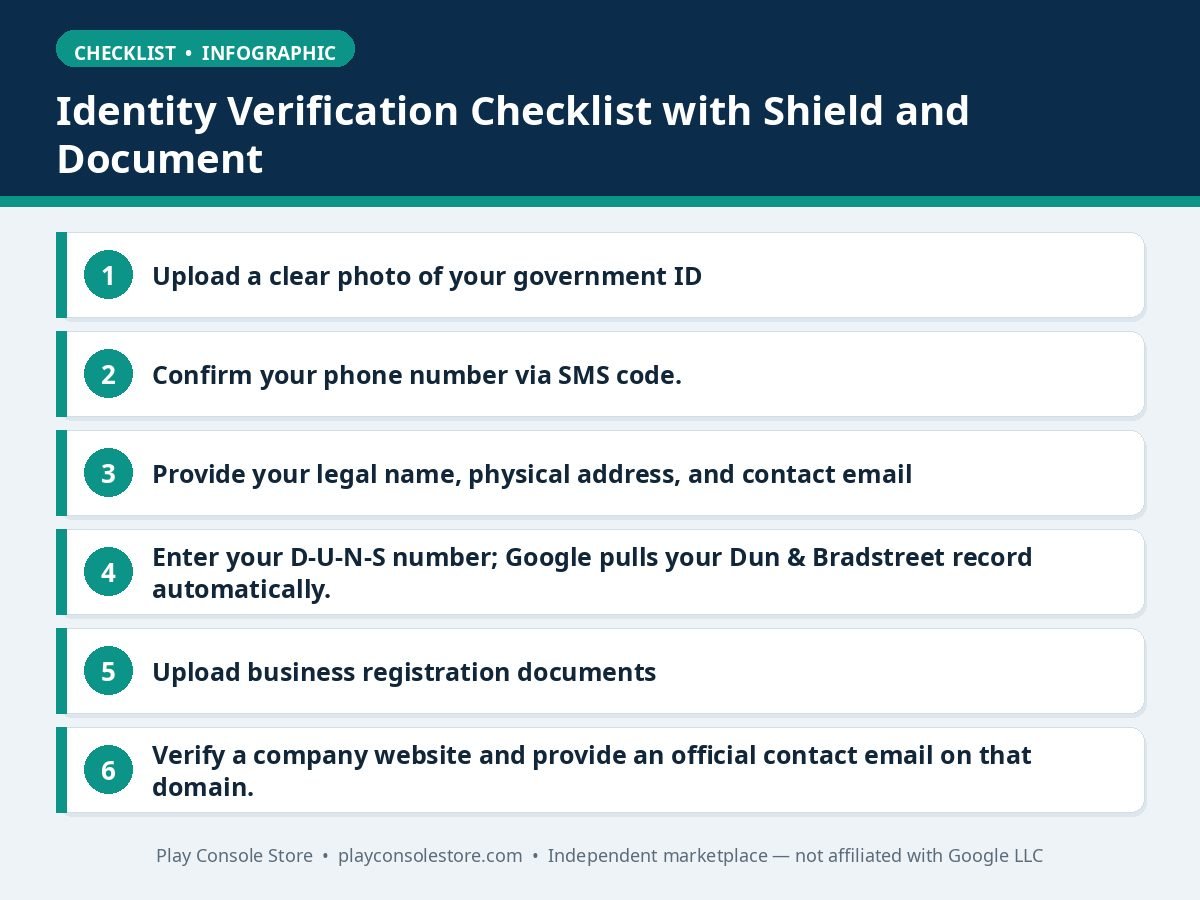
For individual developers publishing under their own name. Verification requires a government-issued photo ID (passport, driver’s license, or national ID card) and phone number confirmation. Verification is typically fast — hours to a couple of days.
Trade-offs to know:
For companies, studios, agencies, and formal teams. Verification requires a D-U-N-S number from Dun & Bradstreet, plus business registration documents proving the legal entity. Your D-U-N-S record’s legal name and address must match your registration documents exactly — mismatches are the #1 verification failure cause.
Advantages: your company name shows on listings (better for client trust), no 14-day closed testing mandate applies the same way (though testing is still expected), and team management is cleaner. Downsides: D-U-N-S registration itself can take 2–4 weeks if you don’t already have a number, and verification overall is slower.
Rule of thumb: publishing your own indie apps? Personal. Publishing for a registered business or clients? Organization from day one. For a deeper comparison, see our Google Play developer account guide.
The table below compares the two account types side by side:
| Aspect | Personal account | Organisation account |
|---|---|---|
| For | Individual developers publishing under their own name | Companies, studios, agencies, and formal teams |
| Verification | Government-issued photo ID and phone number confirmation | D-U-N-S number plus business registration documents |
| Name on listings | Your legal name appears as the developer name unless you set a different public developer name | Your company name shows on listings |
| Closed testing | New accounts must complete 14 days of closed testing with 12+ testers before production unlocks | The 14-day mandate does not apply the same way, though testing is still expected |
| Verification speed | Typically fast — hours to a couple of days | Slower overall; D-U-N-S registration alone can take 2–4 weeks if you do not already have a number |
| Converting later | Cannot be converted into an organisation account | — |
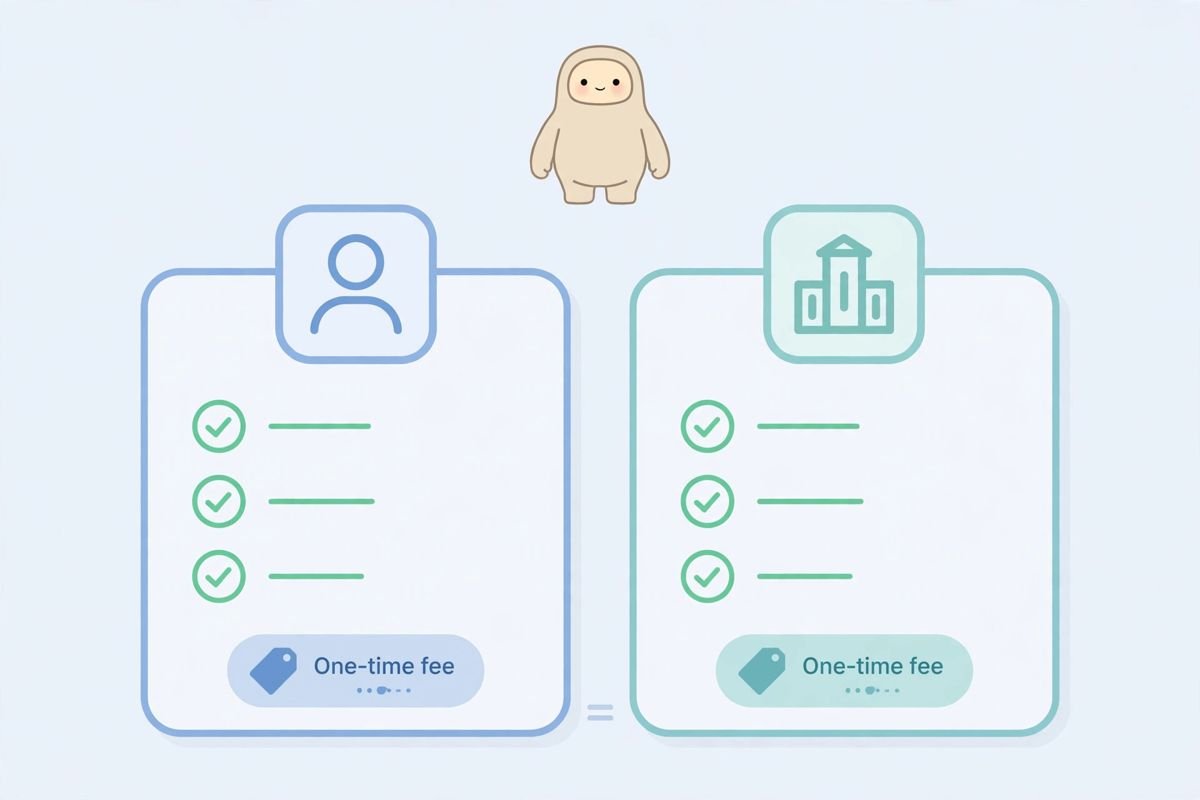
Every Google Play Console account — personal or organization — pays a one-time $25 USD registration fee. Key facts:
Anyone offering you a “free” or discounted developer account is running a scam — there is no legitimate way around the fee, and purchased accounts are routinely terminated.
The table below summarises the key fee facts:
| Fee fact | Detail |
|---|---|
| Amount | One-time $25 USD registration fee, for personal and organisation accounts alike |
| Renewal | Never renews; no annual fees and no per-app charges |
| Scope | Per account, not per app — one account publishes unlimited apps |
| Refunds | Non-refundable in nearly all cases, including failed verification or later termination |
| Payment method | Credit or debit card; the card name should be consistent with the account holder |
| Not covered | Google’s separate service fee: 15% on the first $1M of annual earnings, 30% above that; Cloud, Firebase, and advertising costs are also separate |
Google verifies every developer account — no exceptions since the verification program expanded. Here’s what happens:
Personal accounts:
Organization accounts:
Top verification failure reasons: blurry or cropped ID photos; name on ID not matching the name entered (mind middle names and transliterations); D-U-N-S address differing from registration documents by even a suite number; using a personal email for an organization account; and submitting documents in a language Google can’t process without translation. Fix the specific issue cited in the rejection email — resubmitting the same documents gets you rejected again. Google documents current requirements in the Play Console Help Center.
Once verified, your account has a standing with Google that affects everything:
Your account also controls app signing keys (via Play App Signing enrollment), payments profiles (where earnings go), and API access (service accounts for CI/CD publishing). Losing access to the owning Google account without proper team users configured can strand all of these — which is why inviting at least one trusted admin as backup is essential. Learn how in our team and permissions guide.
Your developer account is a high-value target — it controls app signing keys and revenue. Minimum security posture:
Phishing deserves special mention: fake “policy violation” emails linking to pixel-perfect console login replicas specifically target developers. Never click sign-in links in emails — navigate to play.google.com/console manually, and check for accounts.google.com in the address bar before entering credentials.
Get these five right and everything downstream — verification, testing, publishing — flows smoothly.
A Google Play Console account costs a $25 one-time registration fee — personal and organization accounts alike. It never renews and covers unlimited apps. Google separately takes a 15% service fee on the first $1M of annual earnings from paid apps and in-app purchases (30% above $1M).
Personal accounts are for individuals (verified with government ID); organization accounts are for companies (verified with a D-U-N-S number and business documents). Organizations show a company name on listings and manage teams more cleanly, but verification takes longer. You cannot convert between types later.
Personal account verification typically completes within a few hours to 2 days if documents are clean. Organization verification takes longer — 1–2 weeks is common, plus however long D-U-N-S registration takes if you don’t already have a number (allow 2–4 weeks for that).
Technically yes, but Google watches for associated accounts — if one account is terminated for policy violations, related accounts are typically terminated too. Legitimate reasons (separate businesses) are fine; creating a second account to dodge a ban or a strike will get both terminated.
No. Google offers no conversion path between account types. To move to an organization account you must register a new one and transfer apps — a manual, review-gated process. Choose correctly at signup.
Your Google Play Console account is a long-term asset: $25 once, unlimited apps forever — but only if you choose the right type, verify cleanly, and protect your standing. The developers who struggle are the ones who rushed signup with the wrong Google account, picked personal when they needed organization, or treated verification documents casually.
Play Console Store is an independent marketplace that helps Android developers with Play Console account setup, identity verification, and getting every day-one decision right. Explore our Google Play services and start from a solid foundation.