

November 11, 2026

Identity verification is where Google Play Android developer account registrations go to stall. Google verifies every publisher — no exceptions — and its reviewers reject documents for reasons that feel trivial until you understand what they’re checking: exact name matches, unexpired IDs, D-U-N-S records that mirror your business filings character-for-character. This guide is a deep-dive into verification: what Google asks for, why rejections happen, and how to pass on the first submission.
In short: Every Google Play Android developer account must pass identity verification before publishing — a government photo ID for personal accounts, or a D-U-N-S number and business documents for organisations. Most rejections come from blurry ID photos, name mismatches, or D-U-N-S records differing from business filings. Clean, exact-match documents clear in 1–3 days (personal) or 1–3 weeks (organisation).
Since the verification requirements tightened, every new Google Play Android developer account must prove real-world identity before publishing. Google’s goals are straightforward: keep malware distributors, spam farms, and ban-evaders off the store, and give users an accountable legal entity behind every app. The practical consequence: treat verification as a legal filing, not a signup form. Precision beats speed.
The account fundamentals — $25 fee, personal vs. organization types — are covered in our developer account overview. Here we go deep on the verification gauntlet itself.
Identity verification checklist protected by a shield
Where: Play Console → Setup → Developer account → Verification.
What you submit:
What reviewers check:
Timeline: typically 1–3 business days. You’ll get an email when the decision lands; the console’s verification page shows status.
If rejected: the notice names the problem (e.g., “document unclear”). Fix exactly that — retake the photo in good light, or correct the name — and resubmit. Don’t alter unrelated fields; that can restart the full review.
Organization verification is a different sport. You must prove the business exists, that you represent it, and that its records are consistent.
What you submit:
The exact-match rule: the legal name and address on your D-U-N-S record must match your registration documents character for character. “Acme Inc.” vs “Acme Incorporated”, “St.” vs “Street”, a missing suite number — any of these can fail you. Before submitting, pull your D-U-N-S record and your filings side by side and reconcile every abbreviation.
Timeline: 1–3 weeks, with manual review. Start the D-U-N-S request the day you decide to register — it’s the longest pole in the tent.
The table below compares the two verification routes described above:
| Item | Personal account | Organization account |
|---|---|---|
| Main document | Government-issued photo ID — passport, driver’s license, or national ID card, current, fully legible, all four corners uncropped | D-U-N-S number, business registration documents, official website, plus representative identity |
| Additional check | Phone number verification via SMS or call | Exact-match rule: legal name and address on D-U-N-S record must match registration documents character for character |
| Timeline stated | Typically 1–3 business days | 1–3 weeks, with manual review |
| D-U-N-S timing | Not required | Standard issuance takes up to 30 days (expedited ~$229) |
Ranked by how often they kill verifications:
Each rejection costs you a full review cycle. An hour of preparation saves weeks.
The table below summarises the rejection causes and fixes listed above:
| Rejection cause | Fix stated in the guide |
|---|---|
| Blurry/cropped ID photos | Retake in daylight, all corners visible, no glare |
| Name mismatches | Align ID, Google account, and developer profile to the legal name |
| D-U-N-S address/name drift | Reconcile abbreviations and suffixes before submitting |
| Dead or mismatched website | Site must load, belong to the business, and show the same name/address |
| Minutes-old Google account | Use an established, 2SV-secured account |
| Expired documents | Check expiry dates before photographing anything |
| Wrong document type | Utility bills and bank statements don’t substitute for government ID or business registration |
Verification unlocks the $25 payment and the Developer Distribution Agreement. Complete your developer profile — developer name, support email, physical address — knowing it’s all public on your listings. Then the next gate for new accounts: the 14-day closed testing requirement (12+ opted-in testers, 14 days) before production unlocks. Our closed testing service handles tester recruitment and tracking if you want it done right.
Keep your verification documents accessible: Google can re-verify, and you’ll need the same exact-match discipline if you ever update the developer profile or transfer apps.
Google’s official verification documentation lives in the Play Console Help Center.
Passing verification once doesn’t mean never again. Google can re-verify a Google Play Android developer account at any time — and certain actions make it likely. Knowing the triggers lets you prepare instead of scramble.
Common re-verification triggers:
How to stay ready: keep your verification documents current (unexpired ID, active D-U-N-S record, live website), keep the D-U-N-S record reconciled with your filings on an ongoing basis, and keep the same exact-match discipline you used at signup. Store clear scans of current documents where your team can find them — re-verification usually comes with a deadline, and hunting for paperwork under time pressure is how mistakes happen.
If re-verification is requested: respond through the console’s verification flow promptly, submit the same caliber of documents as your original application, and don’t change unrelated account details while the review runs. Most re-verifications clear in days when the documents are in order — they become crises only when developers ignore the request until the deadline forces their hand.
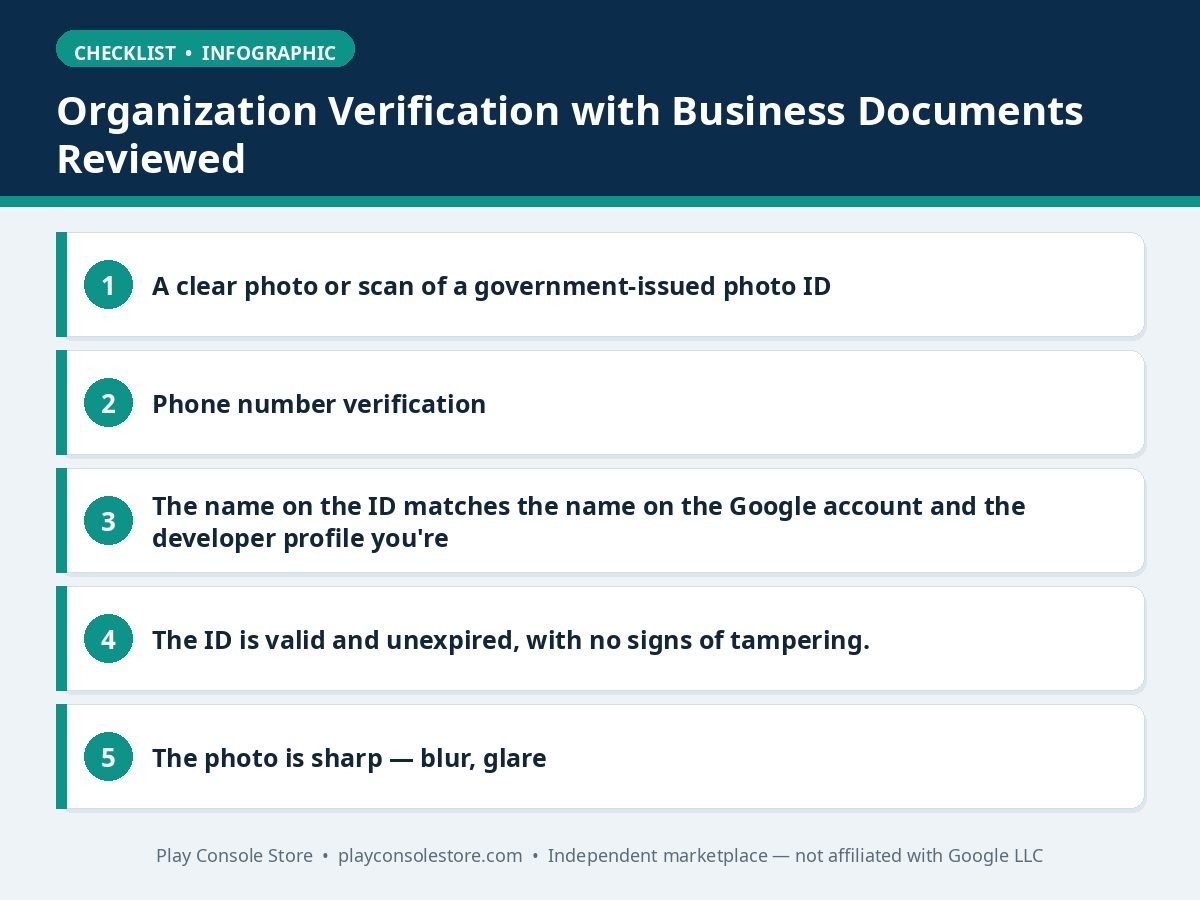
Organization verification with business documents reviewed
A current, government-issued photo ID — passport, driver’s license, or national ID card. It must be unexpired, fully legible with all four corners visible in the photo, and the name must match your Google account and developer profile exactly. Expired documents, cropped photos, and name mismatches are the top rejection reasons.
Only for organization accounts — personal accounts verify with a government photo ID instead. For organizations, the D-U-N-S number is mandatory, and its legal name and address must match your business registration documents character-for-character, including abbreviations and legal suffixes like Inc. or LLC.
1–3 business days for personal accounts with clean ID submissions; 1–3 weeks for organizations due to manual D-U-N-S and document review. Rejections restart the clock, so submitting sharp, exact-match documents the first time is genuinely the fastest path through verification.
The most common reasons are a blurry or cropped ID photo, a name mismatch between the ID and the account, D-U-N-S records differing from business documents, a non-functional business website, or expired documents. The rejection notice names the specific issue — fix exactly that item and resubmit without changing unrelated details.
No — Google requires a real, verifiable physical address tied to your identity (personal accounts) or to your D-U-N-S and business records (organization accounts). Virtual addresses, PO boxes, and coworking addresses you can’t verify are a reliable path to rejection.
Verification is one-time per account, but Google can request re-verification — particularly after developer profile changes, app transfers, or compliance reviews. Keep your documents current and accessible so a re-verification request with a deadline never becomes a crisis.
Verification is the least glamorous and most delay-prone step in creating a Google Play Android developer account. The entire game is precision: sharp documents, legal names everywhere, and D-U-N-S records reconciled to the character. Submit once, submit clean, and you’re publishing in days instead of months.
Play Console Store is an independent marketplace helping Android developers through verification and beyond — document preparation guidance, account setup, closed testing coordination, and policy compliance. Explore our Google Play services.