

November 8, 2026

When developers say “console Google Play Store,” they usually mean the Play Console’s store-facing side — everything that controls how your app appears to the billions of people browsing Google Play. Your code gets users to the store; your store presence gets them to tap Install. This guide covers the console’s store management toolkit: listings, graphics, experiments, ratings, and the growth levers most developers leave untouched.
In short: The console’s store-facing side controls everything a user sees before tapping Install: name, description, graphics, experiments, ratings and localisation. Treat the listing as a living product surface — iterate it, A/B test it, reply to reviews and localise it market by market — and installs compound over time.
For account setup and publishing fundamentals, see our Google Play Console complete guide.
Everything a user sees before installing lives under Grow → Store presence → Main store listing:
Treat this page as a living document, not a form you fill once. Top-grossing apps update their listings constantly — seasonal graphics, refreshed screenshots for major versions, description tweaks based on review themes.
The table below summarises what the console controls on this page:
| Listing element | Details from this article |
|---|---|
| App name | 30 characters — among the highest-weight text for Play Store search |
| Short description | 80 characters — also among the highest-weight text for search |
| Full description | Up to 4,000 characters — your sales pitch and keyword surface |
| Graphics | App icon, feature graphic, and screenshots, in Google’s exact required dimensions |
| Category, tags, and contact details | Includes your public developer email and website |
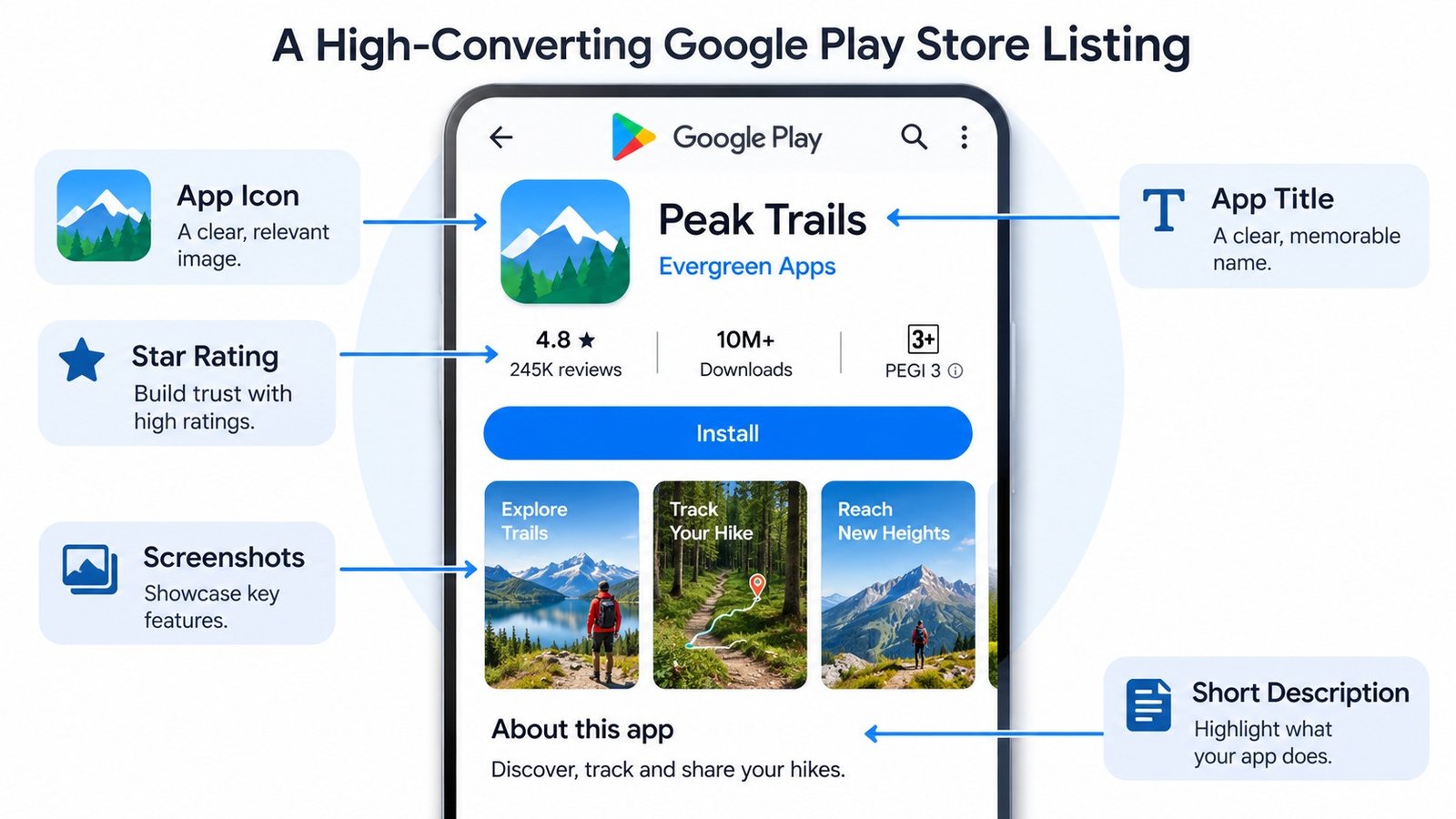
Your app name carries the most search weight. Format that works: Brand + primary keyword (e.g., “FitTrack: Workout Planner”). The short description (80 chars) is your elevator pitch — lead with the core benefit, not features. Both are indexed for search, so include the terms users actually type, naturally.
Structure it for scanners:
Avoid keyword stuffing — Google’s algorithms detect it, and users bounce from spammy listings. Write for humans first; the keywords that matter will appear naturally when you describe what the app does. More listing tactics in our Google Play developer tips.
The developers who squeeze the most from their store presence treat listings seasonally. Calendar moments worth a listing refresh:
Each refresh is a mini-experiment: change one element, watch conversion for two weeks, keep what works. Over a year, this cadence compounds into a listing that’s dramatically better than the “set and forget” alternative most competitors run.
Grow → Store presence → Store listing experiments is the most underused growth tool in the console. You can A/B test your icon, feature graphic, screenshots, and descriptions against live Play Store traffic, with Google handling the statistics.
Rules for valid experiments:
One experiment per quarter, consistently, compounds into a dramatically better-converting listing over a year. This is the highest-ROI activity for any app with existing traffic.
Under Grow → Store presence → Custom store listings, you can tailor your listing for specific countries or search terms. Examples that work:
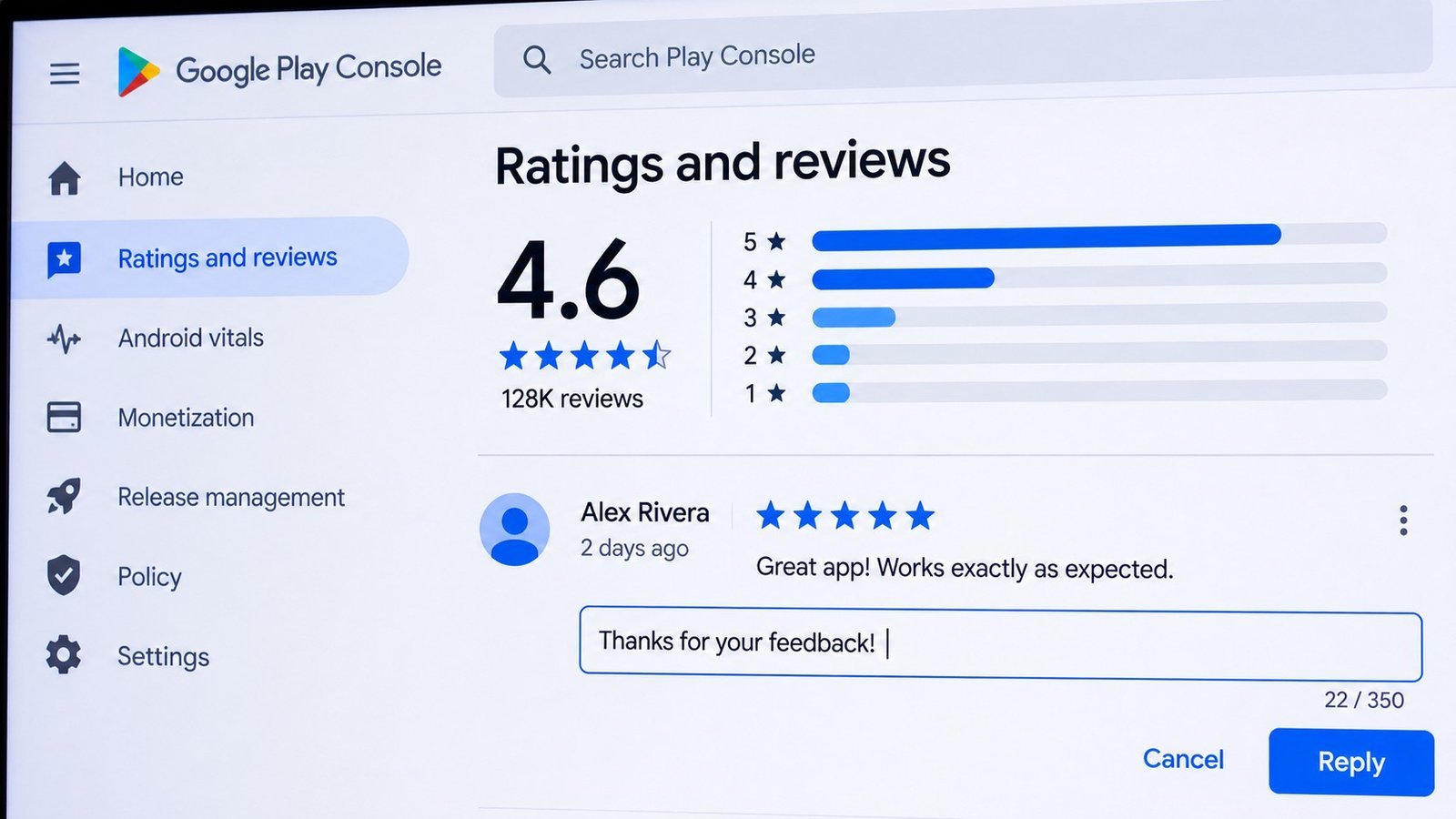
Quality → Ratings and reviews is public customer service. Reply to every 1–3 star review when volume allows, and acknowledge 5-star reviews too. Keep replies short, human, and specific — “Thanks! Version 2.3 fixes the sync issue you reported” beats “Thanks for your feedback” every time. Users update negative reviews after good responses far more often than developers expect.
Your visible rating weights recent reviews and the current version. After a bad release, your rating can crater in days — and recover just as fast with a fix and review replies. Never buy reviews or incentivize 5-stars with rewards; Google detects manipulation and the resulting strike can end your account.
Under Release → Production → Countries/regions and Monetize, you control where your app appears and what it costs. Strategic notes:
Your app’s biggest growth lever after product-market fit is often localization — and the console gives you the tools under Grow → Store presence.
Don’t localize for everywhere at once. In Monitor → Statistics, sort installs by country and find where you have traction without trying — those are your first localization targets. A common pattern: English-language apps discover large audiences in markets they never targeted, and a localized listing multiplies that organic traction.
Use custom store listings to serve localized assets to specific countries while keeping your default listing elsewhere. Test one market first, measure install conversion before and after, then roll out the playbook to the next five markets. Google’s official guidance on store presence in the Play Console Help Center covers the technical requirements for each asset type.
One caution on custom listings: don’t fragment your brand. Localized assets should feel like the same app speaking another language, not a different app. Keep your icon, color system, and core value proposition identical everywhere — localize the words and cultural references, never the identity. When in doubt about a market, start with translated text on existing graphics before commissioning fully localized creative — you’ll learn whether the market responds before spending on assets.
The table below summarises what to localize, in priority order:
| Priority | What to localize | Notes |
|---|---|---|
| 1 | App name and short description | Highest search-weight text, cheapest to translate well |
| 2 | Screenshots and feature graphic | Annotated screenshots in the user’s language convert measurably better |
| 3 | Full description | Hire native speakers, not machine translation |
| 4 | In-app content | The listing brings users in; the app keeps them |
In Play Console, go to Grow → Store presence → Main store listing, edit the app name field, and save. Changes go through a short review before appearing publicly. Frequent name changes can trigger additional review.
Most listing updates go live within a few hours, though some trigger a review that takes 1–3 days. Check Publishing overview for status.
Yes — custom store listings let you tailor graphics and text by country or audience. Your default listing covers everywhere else.
Indirectly but powerfully. Screenshots don’t change search ranking much, but they dramatically change conversion rate — and higher conversion improves your ranking over time. It’s a flywheel.
Go to Quality → Ratings and reviews, click any review, and reply. Replies are public and the user is notified. Keep them specific and human.
Your visible rating weights recent reviews heavily. A buggy release, a policy of prompting for ratings at bad moments, or a wave of reviews after press coverage can all move it fast. Check the reviews for the current version specifically.
Your console Google Play Store presence is a product surface, not paperwork. Developers who iterate on listings, run experiments, reply to reviews, and localize deliberately build a compounding install advantage over developers who set it once and forget it.
If you want help with the operational side — publishing, testing, compliance — Play Console Store handles it so you can focus on the product. We’re an independent marketplace. Explore our Google Play services.