

November 17, 2026

Open your Play Console account and you’re staring at one of the densest dashboards in software: dozens of menu items across seven sections, each controlling a different part of your app’s life. Most developers learn only the three screens they need for launch day — upload, listing, release — and discover the rest during a crisis: a policy warning they can’t find, a payout that never arrived, a crash spike with no alert configured.
In short: Your Play Console account packs seven tools into one dashboard: Release, Grow, Monetize, Policy, Quality, Setup, and the All apps home screen. Most developers only learn the three screens launch day requires and discover the rest during a crisis. This tour explains every section, flags the settings developers overlook, and shows where policy warnings, payouts, and release controls actually live.
This guide is the full tour. We’ll walk through every major section of the Play Console account dashboard at play.google.com/console, explain what each screen actually does, and flag the settings most developers overlook until they need them. For account setup itself, see our Google Play Console account guide.
After sign-in you land on All apps — your portfolio overview. Each row shows the app icon, name, package name, and a status badge: Draft, In review, Published, Suspended, or Removed. Key things to know:
New developers often miss the Inbox (bell icon, top right) — Google delivers policy warnings, review completions, and payout notifications here. Check it as religiously as email; several enforcement deadlines are communicated only via inbox messages.

Release is the largest section and the one you’ll live in during launch weeks.
Each track has its own Releases tab (upload AABs, write release notes, roll out) and Testers tab (manage lists). Pro tip: keep a permanent closed track as your ongoing beta even after launch — it’s your safest place to validate risky changes.
The public track. Upload your AAB under Production → Create new release, add release notes (write these carefully — they’re user-visible in “What’s new”), select countries under Countries/regions, and choose staged rollout percentages. The Releases overview page shows every track’s current state in one timeline — invaluable when you’re not sure which build is where.
The table below compares the testing tracks:
| Track | Testers | Notes |
|---|---|---|
| Internal testing | Up to 100 testers via email list | Fastest distribution, usually available within minutes to hours; use for daily builds and CI output |
| Closed testing | Email-list or Google-Group testers, no fixed cap | Where new personal accounts satisfy the 14-day / 12-tester requirement |
| Open testing | Public opt-in link, unlimited testers | Your public beta channel |
Grow → Store presence → Main store listing controls what users see: app name (30 chars), short description (80 chars), full description (4,000 chars), icon, feature graphic, and screenshots with strict dimension requirements (e.g., phone screenshots minimum 320px, feature graphic exactly 1024×500).
Beyond the basics, this section hides powerful tools:
Listing changes go through review (usually faster than app review, often hours), so plan ASO updates ahead of campaigns.
Monetize → Products manages in-app products and subscriptions. The subscription system is deep: base plans with regional pricing, offers (free trials, intro pricing, win-back), and price-change workflows with legacy-price cohort handling.
Critical: once an app is published as free, it can never become paid — but paid apps can become free. Decide monetization model before first production release.
Policy → App content is where releases go to die if neglected. Mandatory declarations include:
Each declaration shows a completion status; a release cannot ship with incomplete declarations. Review the Policy status page regularly — it’s where warnings and deadlines appear before they become removals.
The table below summarises the mandatory policy declarations:
| Declaration | What it covers |
|---|---|
| Content rating | IARC questionnaire — answer truthfully; dishonest answers are violations |
| Target audience | Age groups your app targets; triggers Families requirements if children are included |
| Data safety | Field-by-field data collection declaration, which must match your SDKs’ actual behaviour |
| Privacy policy | A real, working URL, required for most apps |
| Advertising ID declaration | Declared where applicable |
| Permissions declarations | Foreground services and photo/video access justifications, where applicable |
| News app declaration | Where applicable |
Quality → Android vitals tracks crash rate, ANR rate, and excessive wakeups against Google’s bad-behavior thresholds. Cross those thresholds and your app’s discoverability suffers — vitals directly affect ranking. Configure alerts so you’re notified before users are.
Setup holds the account-level machinery:
The official reference for every screen is Google’s Play Console Help Center — bookmark it; the console’s own inline help links there.
Your Play Console account packs seven tools into one dashboard — release tracks, store listings, monetization, policy declarations, quality monitoring, and team administration. Learn the full sidebar, not just the three screens launch day requires: the settings you ignore today are the ones you’ll hunt for during a crisis. Check the Inbox daily, gate releases on vitals, and keep declarations current.
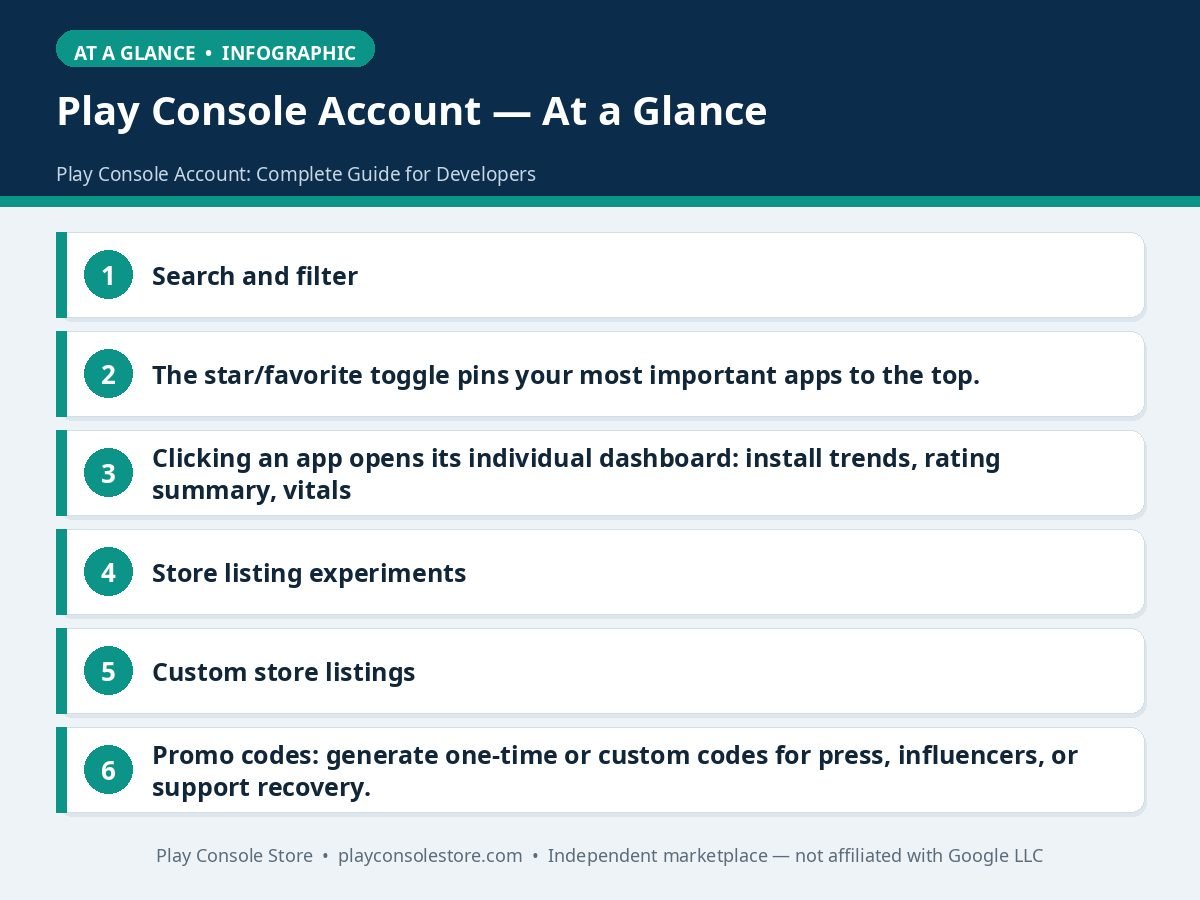
Check the Inbox (bell icon, top right) and Policy → Policy status. Warnings include deadlines — missed deadlines escalate automatically from warning to removal, so treat inbox messages as urgent.
All apps is your portfolio overview (every app, status badges). Clicking one app opens its app dashboard — statistics, ratings, vitals alerts, and release status for that app alone. Daily monitoring happens at the app dashboard level.
Partially. The Play Console mobile app covers statistics, reviews, alerts, and rollout monitoring, but account-level tasks — user invitations, API access, app signing, policy declarations — require the desktop web console.
Earnings reports live under the financial reports area (linked from Monetize and the main dashboard). Payout configuration — bank details, tax forms — lives in the payments profile (payments.google.com), linked from Setup. Payouts can’t flow until tax information is complete.
Never share passwords. Go to Setup → Users and permissions → Invite new users, enter their Google account email, and assign a least-privilege role. They accept the invitation and get their own login with only the permissions you granted.
Your Play Console account is seven tools in one — release engineering, store optimization, monetization, compliance, quality monitoring, and team administration. Developers who learn the full dashboard ship faster and get blindsided less; developers who know three screens spend launch weeks hunting for settings.
Play Console Store is an independent marketplace helping Android developers get the most from every Play Console section — setup, releases, ASO, and compliance. Explore our Google Play services to put expert console knowledge to work on your apps.