

November 19, 2026

Your Google Play developer console sign in guards everything: your apps, your signing keys, your revenue, your users’ trust. That makes it one of the most phished and attacked sign-ins in the developer world — and Google’s security systems treat it accordingly, with verification challenges, suspicious-activity blocks, and mandatory hardening that can feel like obstacles. Most “sign in issues” are really security systems working as designed against risky patterns.
In short: Most Google Play developer console sign-in problems are security systems working as designed. Harden your account with 2-Step Verification using an authenticator app, add hardware security keys for owners and admins, create a passkey for daily sign-ins, and store printed backup codes offline. When blocked, stop retrying, wait 24 hours, then sign in once from a trusted device.
This guide takes the security angle: how to harden your console sign-in properly (passkeys, 2-Step Verification, security keys), how to resolve the security blocks developers hit, and how to recover when hardening goes wrong. For general login troubleshooting, see our Google developer login guide.
Google applies elevated risk analysis to developer account sign-ins because the payoff for attackers is enormous: hijacked developer accounts have been used to push malware updates to millions of users, siphon ad revenue, and hold app portfolios for ransom. Concretely, this means:
Understanding this framing changes the response: when the console challenges your sign-in, it’s usually not broken — it’s asking you to prove you’re really you. The fixes below work with that system.
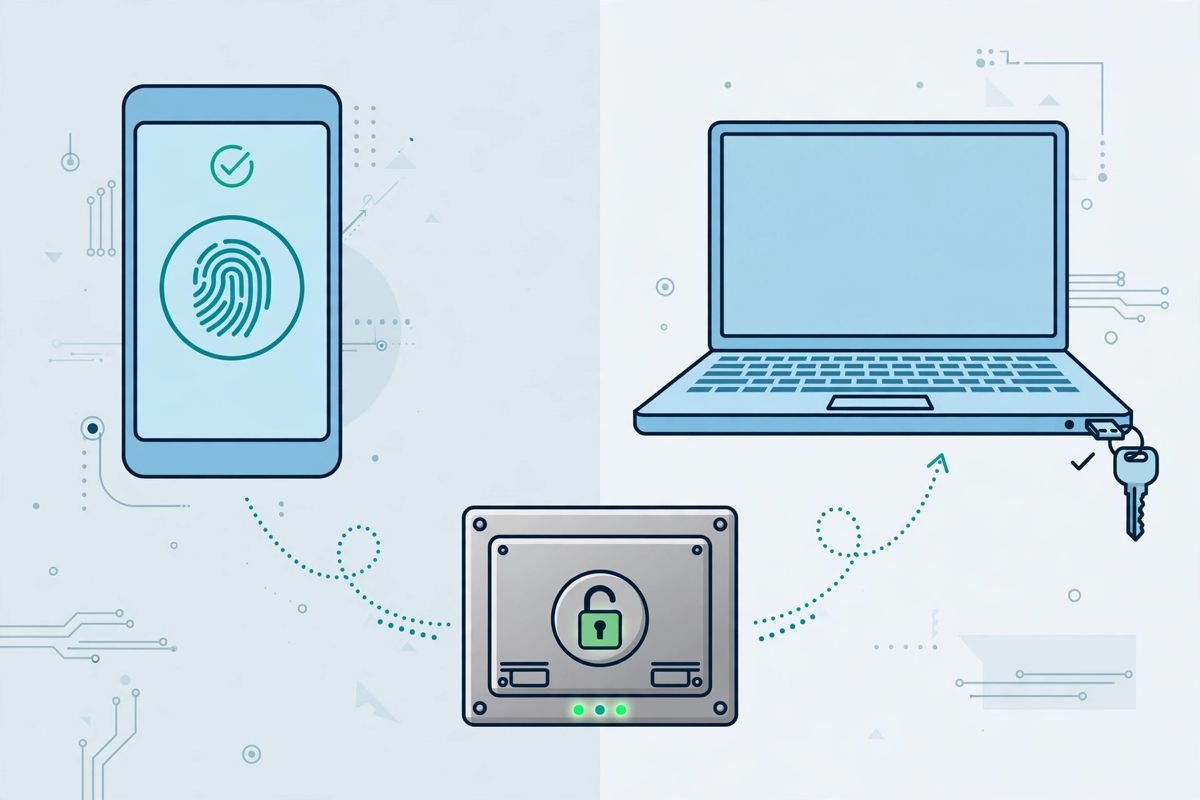
Enable at myaccount.google.com → Security → 2-Step Verification. Choose your second factor in this order of preference:
Immediately after enabling: generate backup codes (8-digit, one-time) and store them offline — printed, in a safe. These are your recovery path if your phone dies.
A hardware security key (YubiKey, Titan Key) implements phishing-resistant FIDO2/WebAuthn authentication. Even if you type your password into a perfect phishing replica, the attacker can’t sign in — the key cryptographically verifies the real google.com.
Register at myaccount.google.com → Security → 2-Step Verification → Security key. Buy two keys: one primary, one backup stored separately. For the account owning a developer account, this is the single highest-value security purchase you’ll ever make (under $60).
Google now supports passkeys — cryptographic credentials stored on your device (phone, laptop, password manager). They replace passwords entirely for sign-in: faster, and immune to phishing like security keys.
Create one at myaccount.google.com → Security → Passkeys. Sync via your platform (iCloud Keychain, Google Password Manager, 1Password) so losing one device doesn’t lock you out. Passkeys are the direction Google is moving — set one up now and your future sign-ins get both easier and safer.
The table below summarises the three hardening tiers:
| Tier | Method | Key points |
|---|---|---|
| Tier 1 | 2-Step Verification (minimum for everyone) | Prefer an authenticator app, then a Google prompt, then SMS codes; generate backup codes and store them offline |
| Tier 2 | Security keys (for account owners and admins) | Phishing-resistant FIDO2/WebAuthn hardware key; buy two keys — one primary, one backup stored separately |
| Tier 3 | Passkeys | Cryptographic credentials stored on your device that replace passwords; sync them via your platform so losing one device doesn’t lock you out |
Cause: risk engine wants stronger proof — new device, new network, or behavior change.
Fix: complete the challenge with your strongest available factor (security key or authenticator, not SMS). Answer knowledge questions carefully — wrong answers escalate to cooldowns. If you’re on a VPN, disconnect and retry from your normal network; succeeding once from a trusted context often clears the flag.
Cause: too many failed attempts, rapid location changes, or bot-like patterns.
Fix: stop trying — every failed attempt extends the block. Wait 24 hours, then sign in once from your usual device and network with correct credentials and 2FA ready. If the block persists beyond 48 hours, run account recovery (accounts.google.com/signin/recovery) from a previously-trusted device.
Recovery path:
Developer-targeted phishing is sophisticated: fake “policy violation” emails linking to pixel-perfect console login replicas, fake “verification required” notices, even phone calls. Rules:
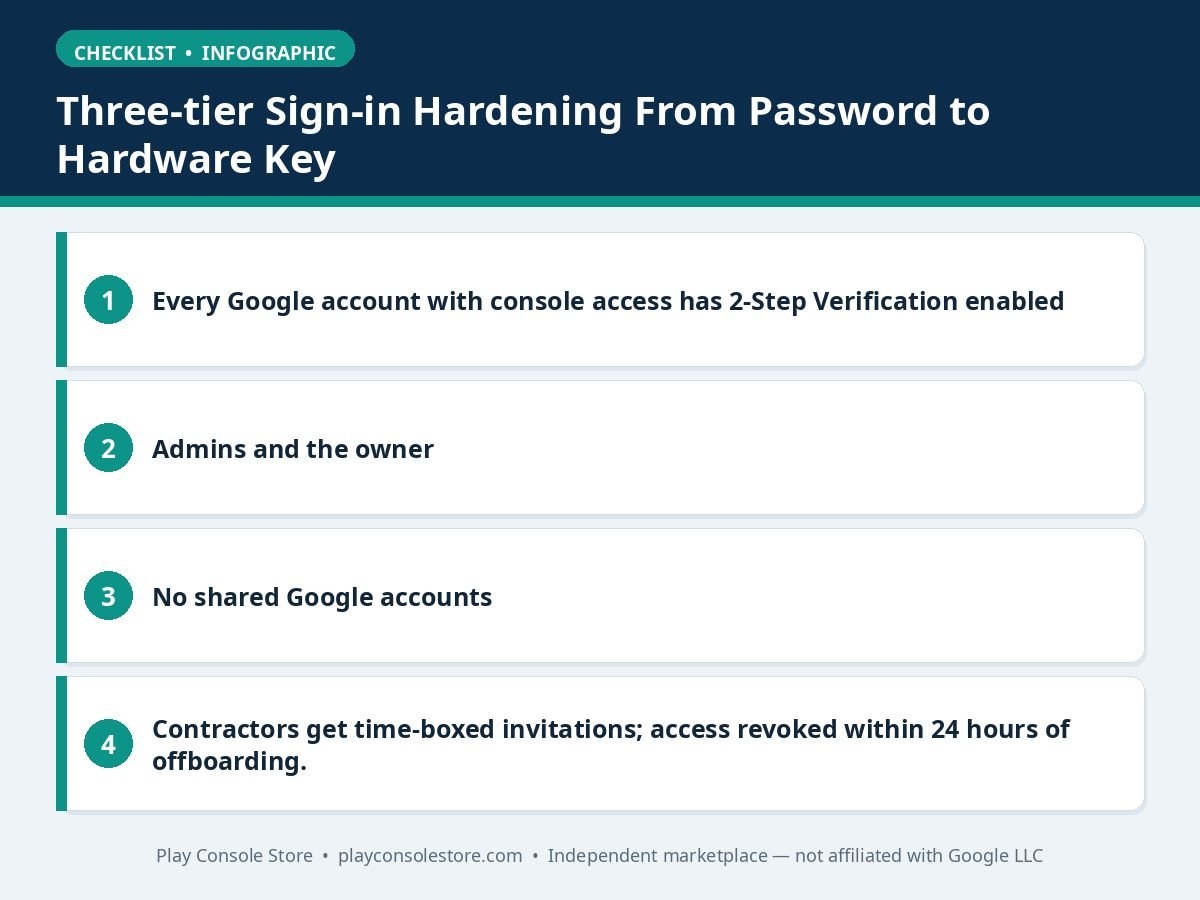
For accounts with multiple users, enforce this:
Google documents current sign-in security options at support.google.com/accounts.
Both are phishing-resistant, but they fit different roles:
| Passkey | Security key | |
|---|---|---|
| What it is | Cryptographic credential on your device | Physical hardware token |
| Convenience | High — biometric unlock, synced across devices | Medium — carry the key, tap to authenticate |
| Recovery | Via platform account (iCloud/Google) | Via backup key |
| Best for | Daily sign-ins on personal devices | Account owners, admins, high-risk targets |
| Cost | Free | ~$25–60 per key |
The practical answer: use both. Passkeys for everyday convenience on your laptop and phone; a pair of hardware security keys as the bulletproof fallback for the account owner. If your platform account (the thing syncing passkeys) is ever compromised, the hardware keys remain an independent recovery path — defense in depth for the account that controls your revenue. Our account recovery guide covers the full fallback ladder.
Secure your Google Play developer console sign in in layers: 2-Step Verification with an authenticator today, hardware security keys for owners and admins, passkeys for daily convenience, and printed backup codes as the emergency exit. Respond to security challenges patiently from trusted contexts. The account guarding your apps and revenue deserves infrastructure-grade protection.
Yes — passkeys are phishing-resistant, faster than passwords, and Google’s preferred direction. Create one at myaccount.google.com → Security → Passkeys, synced through your platform keychain so device loss doesn’t lock you out. Keep a security key or backup codes as fallback.
Developer accounts face elevated risk analysis because hijacked consoles can push malware to millions. New devices, locations, or IP patterns trigger verification on developer sign-ins more aggressively. Consistent sign-in patterns reduce challenges over time.
They’re better than nothing but not recommended as the sole factor — SIM-swapping attacks specifically target high-value accounts like developer consoles. Use an authenticator app or (better) a hardware security key, and keep SMS only as a backup method.
Use your backup key (you registered two, right?) or fall back to backup codes/authenticator to sign in, then remove the lost key at myaccount.google.com → Security and register a replacement. This is why the two-key rule exists — a single key is a single point of failure.
Real Google security emails never ask you to sign in via the email’s link. Navigate manually to play.google.com/console. Check sender domains carefully (google.com, not google-support-desk.com), and remember: with security keys or passkeys enrolled, even a successful phish of your password can’t complete sign-in.
Google Play developer console sign-in issues are security features with sharp edges: harden deliberately (2FA → security keys → passkeys), keep recovery paths ready (backup codes, second key, current recovery contacts), and respond to challenges patiently from trusted contexts. The developers who get locked out are the ones who treated sign-in as a formality; the ones who sail through treated it as infrastructure.
Play Console Store is an independent marketplace helping Android developers secure their console sign-in and team access. Explore our Google Play services to lock down your account properly.