

November 18, 2026

Identity verification is the gate every Google Play Console developer account must pass — and the step where more launches stall than anywhere except the 14-day testing requirement. Google verifies every developer, no exceptions: individuals with government ID, companies with D-U-N-S numbers and business documents. Get it right and you’re publishing in days; get it wrong and you’re stuck in a rejection loop that can stretch for weeks.
This guide goes deep on verification specifically: what Google asks for, the exact document standards, the D-U-N-S process for organizations, the ten most common rejection reasons with fixes, and what happens after you’re verified. For the broader account picture, see our Google Play Console account guide.
In short: Google verifies every Play Console developer account. Personal accounts need a valid government photo ID, an exact legal-name match, a mobile number and the $25 fee, with decisions in hours to two days. Organization accounts also need a D-U-N-S number and business documents, taking one to three weeks. Fix the exact issue named in any rejection email before resubmitting.
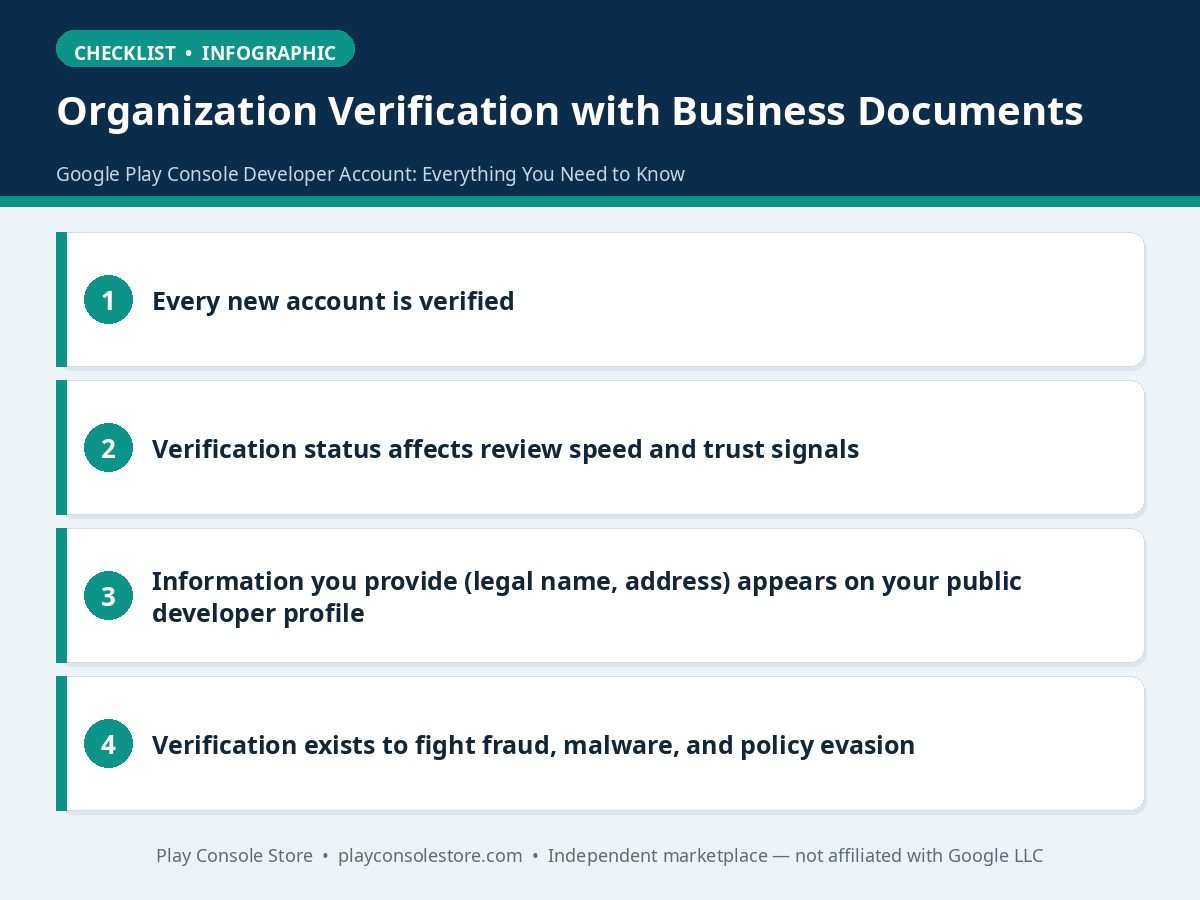
Verification exists to fight fraud, malware, and policy evasion. Before mandatory verification, banned developers simply opened new accounts in minutes; today, identity checks make ban evasion dramatically harder. The practical consequences for legitimate developers:
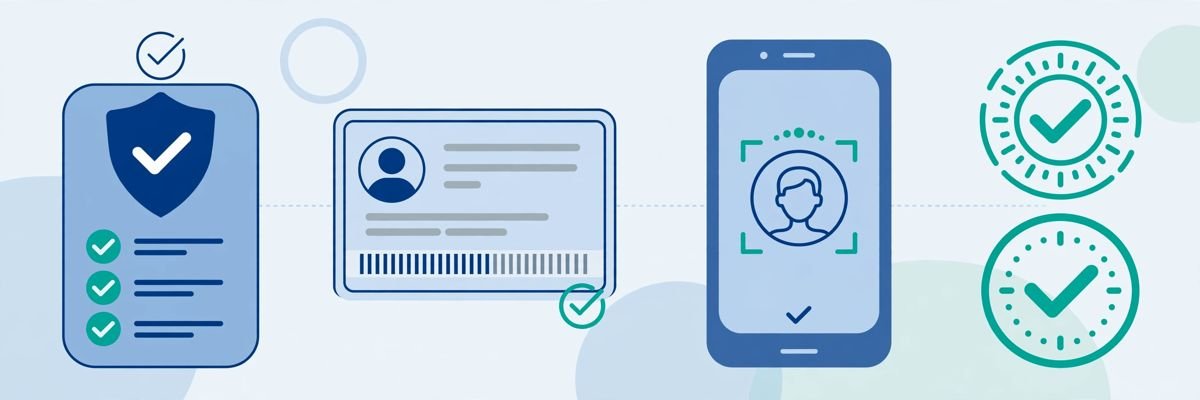
What you need: a valid government-issued photo ID (passport, driver’s license, national identity card) and a mobile phone number.
The process:
Timeline: a few hours to 2 days for clean submissions. You’ll get an email when verification completes; until then, console features show as pending.
Document tips that matter: non-Latin-script IDs are accepted but slow things down — if your ID has a Latin transliteration field, make sure it’s legible. Expired IDs are rejected automatically with no human review, so check the date before uploading. And never submit someone else’s ID — that’s fraud, and it permanently poisons that identity for future registrations.
The table below summarises the personal verification requirements:
| Requirement | Detail |
|---|---|
| ID | Valid government-issued photo ID (passport, driver’s license, or national identity card), not expired |
| Name | Legal name entered exactly as it appears on the ID, including middle names and exact transliteration |
| ID photo | All four corners visible, no glare or shadows over text, minimum legible resolution |
| Phone | Mobile phone number confirmed via SMS code |
| Address | Real residential address; PO boxes and virtual addresses raise flags |
| Fee and agreement | Pay the $25 registration fee and accept the Developer Distribution Agreement |
| Timeline | A few hours to 2 days for clean submissions |
Organization accounts verify the business, not just a person. The cornerstone is the D-U-N-S number — Dun & Bradstreet’s unique business identifier.
Timeline: 1–3 weeks total is realistic — D-U-N-S acquisition plus Google’s review. Start the D-U-N-S request before you need the account; it’s the longest pole.
Critical rule: read the rejection email — it names the specific problem. Fix that, not what you guess the problem is.
The table below summarises the ten common rejections and their fixes:
| Rejection reason | Fix |
|---|---|
| Name mismatch (personal) | Copy the name character-for-character from the ID, including middle names |
| Blurry/cropped ID photo | Retake in daylight, all corners visible, no flash glare |
| Expired ID | Renew first — there is no workaround |
| D-U-N-S name/address mismatch | Update the D&B record first, then resubmit |
| No D-U-N-S found | Verify the number at dnb.com and allow propagation time |
| Personal email for organisation account | Use a domain email |
| Unofficial business documents | Submit the actual government-issued registration certificate |
| PO box / virtual address | Use the real registered business address |
| Representative not authorised | Have a director/officer complete signup, or provide authorisation documentation |
| Repeated rapid resubmission | Fix the cited issue first, then submit once, cleanly |
Certain app categories face additional verification layers beyond standard developer verification:
If your app falls in these categories, budget extra weeks beyond standard verification and prepare regulatory documents alongside your D-U-N-S package. Publishing a financial app on a fresh personal account with no licensing documentation is a guaranteed rejection — the category determines the timeline as much as the account type. Our policy compliance guide details the declaration side.
Once verified:
Google documents the current requirements in the Play Console Help Center — check it before starting, since document requirements evolve.
Verification is the gate every Google Play Console developer account must clear: exact-name matching for personal IDs, a clean D-U-N-S record for organizations, and real addresses throughout. Submit once, cleanly — each rejection resets the clock. Use the waiting time productively: listings, privacy policy, testers, and payments setup can all advance while Google reviews.
Government-issued photo ID: passport, driver’s license, or national identity card. It must be valid (not expired), fully legible, with all corners visible in the photo. The name must match what you enter at signup character-for-character.
Yes — it’s mandatory for organization verification. Request one free at dnb.com (allow up to 30 days standard processing). Your D&B record’s legal name and address must exactly match your business registration documents.
Personal accounts: hours to 2 days with clean documents. Organization accounts: 1–3 weeks including D-U-N-S handling. Rejections reset the clock, so submit correctly the first time using this guide’s checklist.
No. Publishing, testing tracks, and most console features stay locked until verification completes. Plan your timeline accordingly — verification delay is the most common reason launches slip.
Each rejection email names the specific issue — fix exactly that before resubmitting. Repeatedly submitting unchanged documents can trigger extended manual review. If you’re stuck after fixing the cited issue, the appeal/reconsideration path is in the rejection email.
Verification is a paperwork sprint, not a marathon — but only if you prepare: exact-name matching, clean ID photos, a correct D-U-N-S record for companies, and real addresses throughout. The developers stuck in verification limbo are almost always fighting one of the ten fixable issues above.
Play Console Store is an independent marketplace that helps Android developers get verified fast — document preparation, D-U-N-S guidance, and rejection recovery. Explore our Google Play services and clear verification on the first submission.