
Google Play Create Developer Account: The Team Setup Guide (2026)

Play Console Store team

November 25, 2026

Share:

Table of Contents

Estimated progress
Interactive Guide

Most guides explain how to create a Google Play developer account for one person. But studios, agencies, and startups don’t work that way — you need an organization account, a sane user-and-permissions structure, client workflows that don’t commingle liability, and continuity planning for when people leave. This guide covers creating a developer account as a team: the organization setup, the roles to assign, the invitation workflows, and the governance habits that keep multi-person accounts healthy.

In short: Creating a Google Play developer account as a team means choosing an organization account, verifying with a matching D-U-N-S record, and designing roles around least privilege — two admins, scoped invitations, no shared logins. Each client keeps their own account; your team works as invited users, so the asset survives staff changes.

Step 1: Set Up the Organization Foundation First

Before touching Play Console, get the business identity in order — organization verification fails far more often than personal, and almost always for paperwork reasons.

  • D-U-N-S number: register at Dun & Bradstreet if you don’t have one. Free, but allow 2–4 weeks for issuance and up to 30 days for the record to propagate to Google’s verification.
  • Business documents: registration certificate, tax documents — whatever proves the legal entity in your jurisdiction.
  • Company website: must be live and verifiable (Google checks via file upload or DNS record).
  • Role-based Google account: the account that creates the developer account should be a role address (e.g., dev-accounts@yourstudio.com), not a founder’s personal Gmail. People leave; role addresses persist.

The legal name and address you submit must match your D&B record character-for-character. Our company account setup guide details the D-U-N-S process.
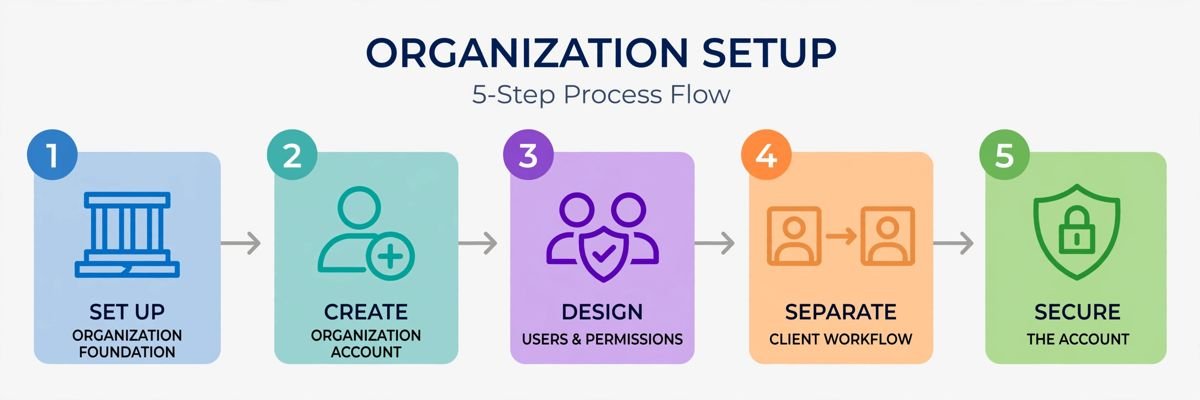
Google Play create developer account setup for teams and studios
Infographic: a five-step process flow for setting up an organization account

Step 2: Google Play Create Developer Account — Organization Setup

  1. Sign in at play.google.com/console/signup with the role-based Google account.
  2. Select organization account type. (This is permanent — there’s no switching later.)
  3. Complete the developer profile with company details: legal business name as the developer name, a monitored contact email, and the business address.
  4. Verify identity: D-U-N-S number, matching legal name/address, business documents, website verification. Expect 3–7 business days after clean submission.
  5. Pay the $25 one-time fee with a company card in the business’s name.
  6. Read and accept the Developer Distribution Agreement — for teams, have whoever holds signing authority review the termination and liability clauses.

For the solo-developer version of this flow, see our step-by-step signup guide.

Step 3: Design Your Users and Permissions Structure

This is where team accounts succeed or fail. Go to Setup to Users and permissions (Google’s user management documentation details every permission) and build roles around the principle of least privilege:

RoleWho gets itTypical permissions
Admin2 founders/leads (never one)Everything, including user management
Release managerSenior devs / DevOpsRelease tracks, app signing, API access
MarketerGrowth / ASO staffStore listings, experiments, reviews
FinanceBookkeeper / CFOPayments, financial reports, tax docs
SupportSupport agentsReview replies, user feedback
Developer (custom)ContractorsInternal/closed testing only

Rules that prevent disasters:

  • Always have two admins. A single admin who loses access (or leaves angrily) can strand the entire account.
  • Never share the owner login. Every human gets their own invited user. Shared credentials trigger Google’s fraud systems and destroy auditability.
  • Contractors get expiring, scoped access. Invite them to specific apps with testing-only roles; remove them when the contract ends. Stale contractor access is a security and policy liability.
  • Review permissions quarterly. People’s responsibilities drift; their console permissions should follow.

Step 4: The Client-Agency Workflow (Don’t Comingle)

Agencies face a specific temptation: publishing client apps under the agency’s own developer account because it’s faster than getting each client verified. Don’t.

  • A policy strike on one client’s app threatens every app on the shared account — including other clients’.
  • When the engagement ends, transferring apps between accounts is disruptive (listings, reviews, and history don’t move cleanly).
  • The client can never get proper organization branding under your personal/agency listing.

The correct workflow:

  1. Each client creates (or you help them create) their own organization account under their business identity.
  2. The client invites your team as users with scoped roles (Release manager for devs, Marketer for ASO).
  3. You do the work; they own the asset. Contracts should state explicitly that the developer account and listings are client property.
  4. Offboard cleanly: when the project ends, the client removes your users. No credential handover, no shared passwords.

This is slower per onboarding and infinitely safer per business. Our account setup services help agencies run this workflow for clients efficiently.

Step 5: Secure the Account Like Infrastructure

A team developer account is business infrastructure — treat it like production servers:

  • 2-step verification on the owner account with two methods, plus backup codes stored in the company password manager and a sealed offline copy.
  • Document everything: which Google account owns the developer account, where backup codes live, who the admins are, the D-U-N-S number. Put it in the business-continuity plan next to domain registrar and banking credentials.
  • Enable notifications (Setup to Notifications) routed to a monitored team channel — policy updates, verification requests, and vitals alerts shouldn’t depend on one person’s inbox. Create a shared #play-console channel and route everything there; the day a policy deadline lands only in someone’s personal inbox is the day you miss it.
  • Separate Chrome profiles per account for team members juggling multiple clients — wrong-account sign-ins are the #1 “login issue” in team environments — one profile per account eliminates them.

Step 6: Establish Team Publishing Discipline

With the account created and staffed, set the operational norms:

  • Staged rollouts mandatory for production updates (10–20% to 50% to 100%), with vitals checked at each stage.
  • Pre-launch reports reviewed on every significant upload — free automated QA on ~10 real devices.
  • Store listing changes via experiments, not gut feeling (Grow to Store experiments).
  • Policy inbox checked weekly by whoever owns compliance — declaration deadlines arrive here.
  • No Friday-afternoon production releases. Review takes 24–48 hours for updates; a Friday ship means a broken weekend if review flags something.

Document these norms in a one-page runbook and link it from your team wiki. New hires should be able to ship their first staged rollout in week one without asking anyone — if they can’t, the process lives in someone’s head instead of in writing, and that’s a bus-factor risk. Revisit the runbook quarterly; Play Console changes often enough that screenshots and menu paths go stale.

Team Account Costs: The Real Budget

ItemCost
Organization registration$25 one-time
D-U-N-S numberFree (2–4 weeks of calendar time)
Per-user invitations$0 — unlimited users included
Service fees on revenue15% first $1M/year, 30% above
Closed testing (new personal accounts only — orgs exempt from the 14-day gate in most cases, but beta testing still recommended)Time/effort
Optional: setup assistanceVaries

Note the economics: the $25 covers the whole team, so per-seat cost is effectively zero. The budget conversation for teams is about service fees on revenue and the calendar cost of verification — start D-U-N-S early and verification never blocks a launch.

Google Play create developer account team setup visual guide
A team account scene with permission badges around a shared dashboard

Frequently Asked Questions

Should a startup create a personal or organization developer account?

Organization, without hesitation. Investors, acquirers, and enterprise clients expect company-owned publishing assets, and converting from personal later means a new account and app migration. Start correctly.

How many users can we invite to our developer account?

There’s no practical limit — invite everyone who needs access, each with their own Google account and scoped role. What’s limited is sense: every user is attack surface, so keep roles minimal and review quarterly.

Can two agencies share one developer account for a joint client project?

Technically yes via user invitations, but ownership should sit with the client’s organization account, with both agencies invited as scoped users. Never park a client’s app on an agency’s personal account.

What happens to the developer account if our admin leaves?

If you’ve followed this guide — role-based owner address, two admins, backup codes in company custody — nothing happens: remove the departing admin’s user and continue. If the account was created on the founder’s personal Gmail with no backup codes, you have an emergency, not a transition.

Does each team member need to pay the $25 fee?

No. The $25 is per developer account, not per user. Invite unlimited team members to one account at no extra cost.

Conclusion

Creating a Google Play developer account as a team is 20% signup and 80% governance: organization verification done cleanly, roles designed around least privilege, clients kept on their own accounts, credentials treated like infrastructure, and publishing discipline enforced from day one. Teams that invest this effort upfront get an account that survives staff turnover, client churn, and scale. Teams that skip it get a ticking time bomb with a $25 fuse.

Play Console Store is an independent marketplace that helps studios and agencies with organization account setup, verification, team workflows, and policy compliance. Talk to us about team setup.

KNOWLEDGE BASE

Related Android Developer Field Manuals

Google Play Create Developer Account: The Team Setup Guide (2026)

Most guides explain how to create a Google Play developer account for one person. But studios, agencies, and startups don’t

Google Play Developer Account Price: Pricing, Fees and What You Get

Everyone quotes the Google Play developer account price — $25, one time — but almost nobody itemizes what that $25

Create Google Play Developer Account: 10 Mistakes to Avoid (2026)

Thousands of developers create a Google Play developer account every month, and a remarkable number of them get it wrong

Get notified when Google updates Play Console policies or SDK requirements.

Join 12,000+ Android developers who receive our quarterly policy diff summaries, rejection workarounds, and ready-to-use boilerplate releases.