

November 24, 2026

Google Play Store sign up — registering as a developer so you can publish apps — takes about 30 minutes of active work plus verification waiting time. But the order matters, and a few choices (account type, which Google account you use) are painful to undo. This guide walks through every screen of the 2026 signup flow, what to prepare beforehand, and the exact verification steps for personal and organization accounts.
In short: Google Play Store sign up takes about 30 minutes of active work: choose a personal or organisation account, complete your developer profile, verify your identity, pay the $25 one-time fee and accept the distribution agreement. Verification then takes hours to days for personal accounts, or up to several weeks for organisations needing a D-U-N-S number.
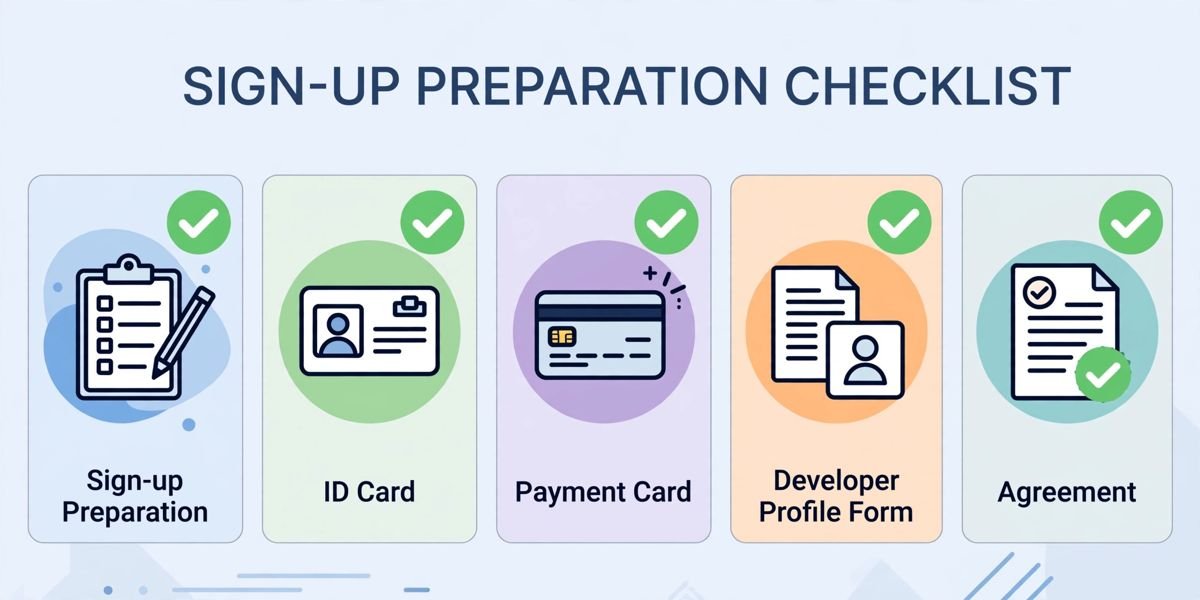
Gather these before opening the signup page — having them ready turns a multi-day ordeal into a single sitting:
Go to play.google.com/console/signup and sign in with your chosen Google account. You’ll be asked to select:
This choice is effectively permanent. If you might publish commercially within the next year, choose organization now. Our personal vs. organization comparison breaks down the decision in detail.
Fill in the public-facing details:
Be accurate: this information is public and changing it later (especially the developer name) can trigger re-verification.
Google verifies every new developer — this is the step where most signups stall.
Upload a clear, well-lit photo of your government ID showing your photo, name, and expiry date. Common rejection reasons:
Verification typically completes within a few hours to 2 business days.
Organization verification typically takes 3–7 business days after documents are accepted; start the D-U-N-S process early since it’s the longest pole in the tent.
The table below summarises verification by account type:
| Account type | Verification required | Typical timing described |
|---|---|---|
| Personal | Clear, well-lit photo of government ID showing photo, name, and expiry date | A few hours to 2 business days |
| Organization | D-U-N-S number, legal name and address matching the D&B record, business registration documents if requested, and company website verification | 3–7 business days after documents are accepted; D-U-N-S registration itself can take 2–4 weeks in some countries |
Once your profile is complete, pay the $25 one-time registration fee by card. Notes:
For the complete economics (service fees, taxes, payout thresholds), read our Google developer account price breakdown.
You’ll accept the Google Play Developer Distribution Agreement — the contract governing everything you publish. Actually read the key sections: content policies, the service fee structure (15% on the first $1M/year, 30% above), termination clauses, and your obligations around user data. Developers who get terminated later almost always violated something in this document they never read.
After payment and agreements, you’ll land in Play Console. Before celebrating:
Signing up is the beginning, not the end. Your realistic next milestones:
Our first-30-days console roadmap maps this entire journey week by week.
“Your payment couldn’t be completed.” Your card was declined — the usual culprits are prepaid/virtual cards, cards not in the account holder’s name, or banks blocking Google’s Ireland-based billing entity. Use a standard credit or debit card and, if needed, tell your bank to authorize the transaction.
“We couldn’t verify your identity.” Re-upload a sharper ID photo (all corners visible, no glare, not expired) and confirm the name matches your developer profile exactly. After two failed attempts, wait a full day before retrying — rapid resubmission can trigger longer manual review.
D-U-N-S not found or mismatched. Your Dun & Bradstreet record may not have propagated yet (allow up to 30 days after registration) or the legal name differs by an abbreviation (“Ltd” vs “Limited”). Fix the D&B record first, then re-verify — submitting the same mismatch repeatedly just burns weeks.
Stuck on “verification in progress” for over a week. Check your email (including spam) and the Play Console inbox for document requests you missed. If everything is submitted and it’s been 10+ business days, contact support via Play Console ? → Help & feedback as the signed-in account owner.
The table below summarises the sign-up problems covered above:
| Problem | Cause / fix described |
|---|---|
| “Your payment couldn’t be completed” | Prepaid/virtual cards, cards not in the account holder’s name, or banks blocking Google’s Ireland-based billing entity; use a standard credit or debit card |
| “We couldn’t verify your identity” | Re-upload a sharper ID photo (all corners visible, no glare, not expired) and confirm the name matches exactly; wait a full day after two failed attempts |
| D-U-N-S not found or mismatched | Record may not have propagated yet (allow up to 30 days) or legal name differs; fix the D&B record first, then re-verify |
| Stuck on “verification in progress” for over a week | Check email/spam and the Play Console inbox for missed document requests; contact support after 10+ business days |
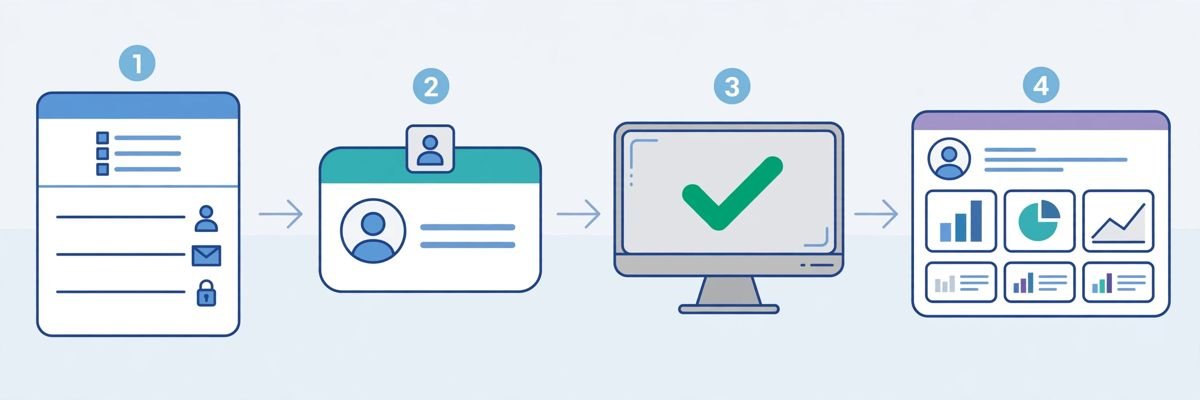
The active work takes about 30 minutes. Identity verification adds a few hours to 2 days for personal accounts, or 1–4 weeks for organizations (mostly D-U-N-S acquisition). Plan for verification before you need to publish.
No — the $25 one-time registration fee is mandatory for every developer account. There is no free tier. Offers of “free” or pre-verified accounts are scams; purchased accounts are routinely terminated by Google.
Developer registration is available in most countries, but merchant (paid app) registration is limited to a smaller list. Check Google’s official supported locations — if your country isn’t listed for merchant accounts, you can still publish free apps.
Effectively no — account type can’t be switched after registration. You’d need to create a new account (and pay $25 again) and transfer apps, which is disruptive. Choose correctly at signup.
Personal accounts don’t require one. Organization accounts must provide a verifiable company website as part of verification. Either way, you’ll need a live privacy policy URL before you can publish most apps.
Google Play Store sign up is straightforward when you prepare: the right Google account, the right account type, documents ready, $25 on a proper card, and patience for verification. The developers who struggle are the ones who rush — wrong account type, mismatched D-U-N-S records, expired IDs. Spend an hour preparing, follow the steps in order, and you’ll be inside Play Console with a verified account and a clear runway to your first release.
Play Console Store is an independent marketplace helping Android developers with account setup, identity verification, and everything after signup — closed testing, publishing, and policy compliance. Get started.