

November 10, 2026

Developers searching for a “Google Play dev account” usually mean one of three things: the developer account itself used during development, a setup optimized for dev/test workflows, or test accounts for validating purchases. This guide covers all three — what the dev account is, how to structure development vs. production inside one account, and the testing infrastructure (internal tracks, license testers, test payment methods) that professional teams use before anything reaches users.
In short: there is no separate Google Play dev account — one $25 developer account covers development and production, separated by testing tracks. Use internal testing for daily builds, closed testing for beta cohorts and the 14-day gate, license testers for purchase testing, and the pre-launch report as a quality gate before promoting any build.
There is no separate “dev account” product. Your Google Play developer account ($25, identity-verified) is the same account for development and production — Google distinguishes environments with tracks and test tooling, not separate accounts:
Creating a second developer account “for dev” is unnecessary and risky — Google scrutinizes multiple accounts per developer, and the $25 + verification overhead buys you nothing the tracks don’t already provide. One account, disciplined track usage. Our developer account guide covers the account itself; this article is about the dev workflow inside it.
The table below summarises the tracks and test tooling in one account:
| Track | Purpose in this article |
|---|---|
| Internal testing track | Your dev channel: up to 100 testers, builds available in minutes |
| Closed testing | Beta cohorts and the 14-day requirement track for new accounts |
| Open testing | Public opt-in pre-release |
| Production | The public store |

Release → Testing → Internal testing. Upload dev builds here — distribution is typically live within minutes, and up to 100 Google accounts can join via email list. Wire your CI to upload here on every merge to main; fast feedback beats ceremony.
Use distinct application IDs or version codes per track if you need side-by-side installs (e.g., com.example.app.dev for internal). Never let a dev build with test payment hooks reach a closed or production track.
Setup → App signing. Dev builds signed with your upload key; Google re-signs for distribution. Losing the upload key without enrollment blocks all future updates — settle this on day one, not at launch.
Setup → License testing. Add the Gmail addresses of testers; they can purchase in-app products and subscriptions without being charged, using test payment instruments. This is the only legitimate way to validate purchase flows end-to-end.
Real-money testing is how developers accidentally charge themselves (or get flagged). The proper setup:
Document which Gmail addresses are license testers and review the list when team members change — ex-employees retaining test-purchase privileges is a quiet risk.
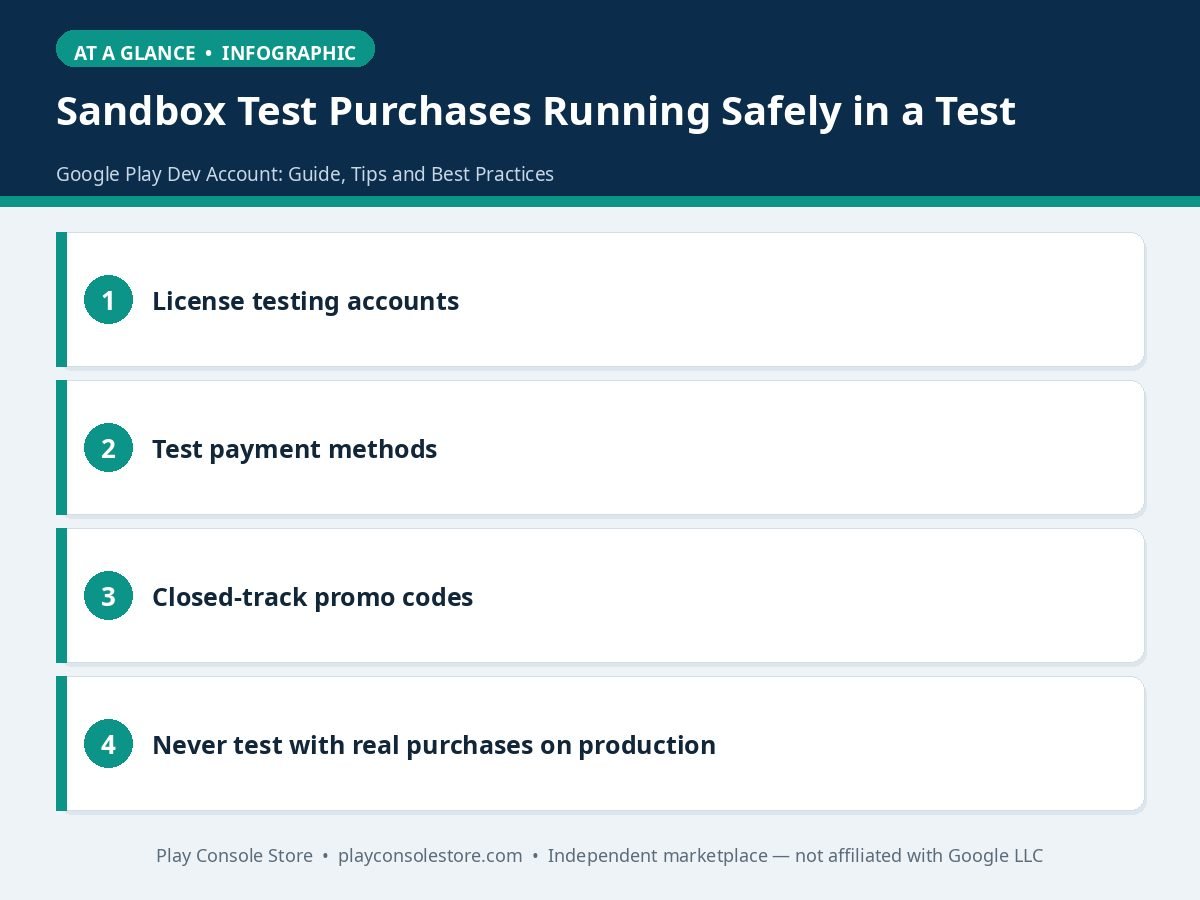
The table below summarises the test purchase setup:
| Method | How it works |
|---|---|
| License testing accounts | Purchases show as test transactions — no real charges, no revenue, clearly labeled |
| Test payment methods | License testers get “Test card, always approves” / “always declines” instruments, including subscription renewals at accelerated rates |
| Closed-track promo codes | Validate redemption flows without production exposure |
| Real purchases on production | Never test this way — refunded real transactions still create financial records and can look like manipulation at scale |
Keep dev data out of production analytics. Internal and closed tracks still generate statistics; segment by track when reading Quality → Statistics, or dev testing will pollute your launch metrics.
Use the pre-launch report as a dev gate. Every bundle uploaded to any track gets automated testing on real devices (crashes, screenshots, performance, accessibility, security). Promote builds to wider tracks only when the report is clean — it’s free QA.
Manage version codes rigorously. Version codes must increase monotonically across tracks. A closed-track build with a higher version code than your intended production build will block promotion — plan numbering (e.g., internal 1xxx, closed 2xxx, production from a reserved range).
Protect the dev tracks. An internal track link shared publicly becomes an uncontrolled distribution channel. Use email-list-gated tracks, rotate testers, and never post opt-in URLs publicly.
Mirror production config in closed testing. Pricing, subscriptions, and data safety declarations should be final on the closed track — policy review happens against what you submit, and last-minute monetization changes are a classic rejection trigger.
Automate with the Play Developer API. Service accounts under Setup → API access let CI/CD upload bundles, manage releases, and reply to reviews programmatically. Start manual, automate once the workflow is stable.
Google’s canonical reference is the Play Console Help Center.
Manual uploads don’t scale — here’s how development teams wire their Google Play dev account into CI/CD properly.
Service account setup. In Google Cloud, create a service account and download its JSON key. In Play Console, go to Setup → API access, link the service account, and grant minimum permissions (typically release management for the tracks you automate). Store the key in your CI secrets manager — never in the repo.
The Edits API flow. The standard automation pattern: CI creates an edit, uploads the .aab, assigns it to the internal track with release notes, and commits. Pseudocode for the sequence: edits.insert → bundles.upload → tracks.update (internal) → edits.commit. Validate the commit response — silent failures here mean QA tests yesterday’s build.
A minimal GitHub Actions outline. On push to main: build the release .aab with Gradle, bump versionCode deterministically (e.g., from run number with a track offset), upload to the internal track via the API, and post the internal-sharing link to the team channel. Keep the workflow file’s permissions scoped and pin action versions.
Promotion stays deliberate. Automate through internal and closed tracks; gate production promotion on vitals or a manual approval. The most common CI disaster is a misconfigured workflow pushing to production on every merge — scope the production step behind an explicit manual trigger.
Key hygiene. Rotate service account keys when team members with CI access leave, audit API permissions quarterly, and monitor the API dashboard for unexpected call patterns. Automation is leverage — secure it like the production system it is. Start small: automate the internal track this week, add closed-track promotion next, and keep a human in the loop for production until vitals-based gates prove themselves over several releases.
No — there is one Google Play developer account per $25 enrollment, and development happens on its testing tracks (internal, closed, open) plus internal app sharing. You don’t need and shouldn’t create a second account for dev work: tracks plus license testers provide complete dev/test separation, while a second account adds cost and association scrutiny for zero benefit.
Add your testers’ Gmail addresses under Setup → License testing in Play Console. License testers receive test payment instruments (always-approve and always-decline cards) so purchases complete without real charges — including accelerated subscription renewals for testing billing cycles. Never validate purchase flows with real production transactions.
Internal testing (up to 100 testers, live in minutes) is for daily dev builds. Closed testing (managed tester lists via email or Google Groups) serves beta cohorts and satisfies the new-account 14-day production gate. Open testing (public opt-in link) enables pre-launch scale testing. Only the production track reaches the public store.
Yes, but structure it correctly: the client should own their own organization developer account, and you get invited as a user with an appropriate role (typically Release Manager). Running client apps under your personal account puts their policy strikes on your permanent record — a risk no convenience justifies.
No — installs, ratings, and reviews from testing tracks never touch the public listing or its ranking signals. However, track activity does appear in your internal statistics, so segment by track when analyzing performance, or dev testing will pollute the metrics you use for launch decisions.
Unlimited — one $25 developer account covers as many apps as you want, each with its own tracks, tester lists, statistics, and store listing, at no additional per-app cost from development through production. Portfolio growth never requires a second account.
The professional “Google Play dev account” setup is one verified account run with discipline: internal track for daily builds, closed for beta, license testers for purchases, pre-launch reports as quality gates, and automation via the Developer API when ready. Master this workflow and the path from code to production becomes boring — which is exactly what you want.
Play Console Store is an independent marketplace helping Android developers build that workflow — account setup, testing-track configuration, closed testing coordination, and release automation guidance. Explore our Google Play services or start with our 30-minute console tutorial.