

November 18, 2026

Play Store console login issues have a special flavor of frustration: you’re not locked out of Google — your Gmail works fine — but play.google.com/console won’t let you in, shows the wrong account, or drops your session every ten minutes. These problems are almost always about session state and account confusion rather than passwords, which means the fixes are different from standard Google account recovery.
This guide targets console-specific login problems: the session and browser issues, multi-account mix-ups, invited-user access failures, and mobile app sign-in quirks. For general Google sign-in failures (passwords, 2FA lockouts), see our Google developer login troubleshooting guide.
In short: Play Store console login issues are almost never password problems — they are session, account-confusion and network problems. First check the avatar email against the account that paid the $25 fee, test in an incognito window, stabilise your network, and audit team invitations. One Chrome profile per Google identity prevents most of these issues outright.
What you see: the console loads fine, but instead of your apps you get a registration prompt or an access error.
What’s happening: you’re signed in with a Google account that has no developer registration. The console ties everything to the specific Google identity — being logged into Google isn’t enough; it must be the right Google account.
Fix:
What you see: signed out after minutes of inactivity, or randomly mid-session.
Normal vs. abnormal: the console times out genuinely idle sessions — that’s expected security behavior. Being dropped while actively working is not normal.
Fixes for abnormal timeouts:
What you see: the URL flickers between addresses, the page stays blank, or the sidebar loads without content.
Fix:
What you see: you were working fine, now the console denies access (or never granted it).
Common causes and fixes:
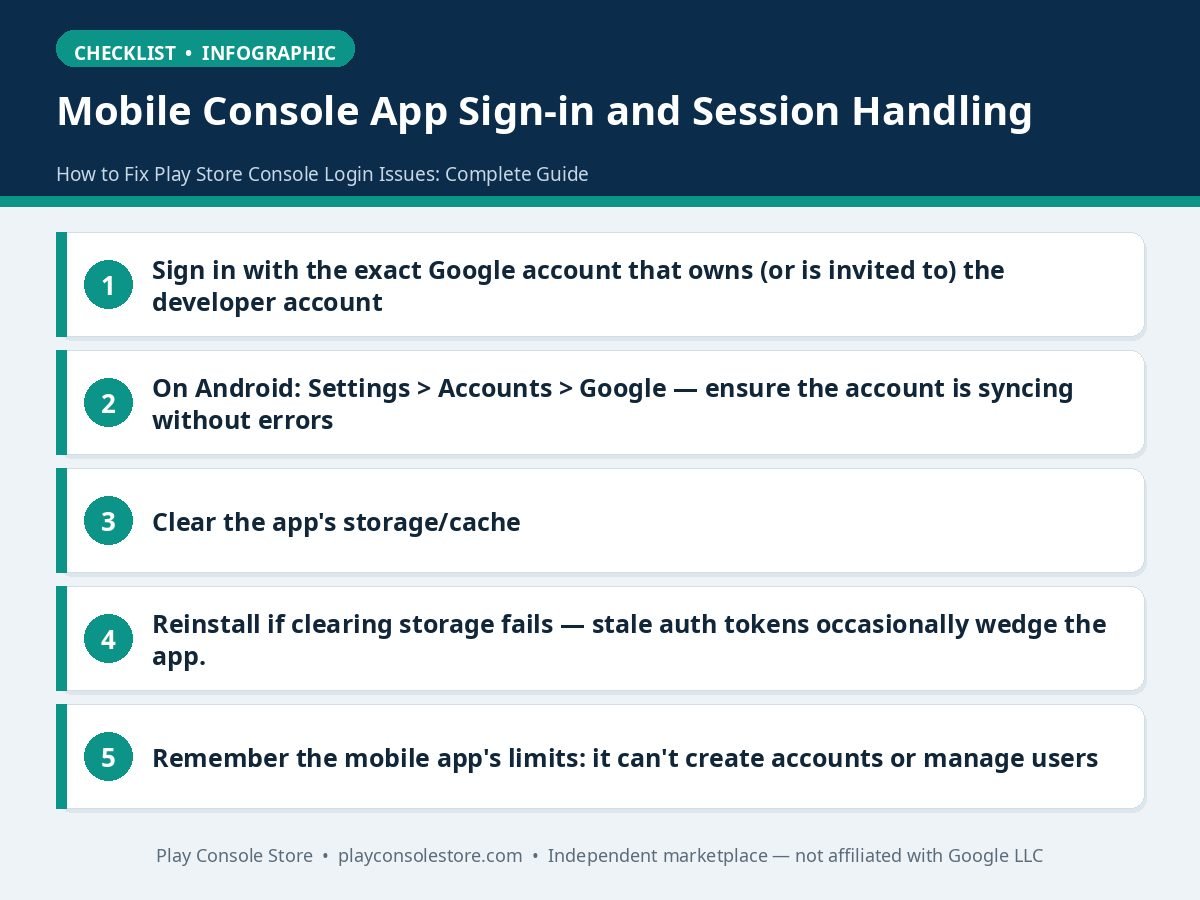
What you see: the Play Console mobile app won’t sign in, shows no apps, or crashes at login.
Fixes:
What you see: constant “verify it’s you” prompts, SMS codes on every sign-in, or temporary blocks.
What’s happening: Google’s risk engine distrusts your sign-in pattern — new device, datacenter IP, country-hopping VPN, or sign-in from a location far from your norm.
Fix:
Most console login issues are self-service — but some genuinely need Google:
Set expectations: support handles technical access issues, not policy appeals or verification judgments. For enforcement, the appeal channel in your notice email is the only path — and our account mistakes guide explains the patterns behind most actions.
Google’s official sign-in help is at support.google.com/accounts.
Play Store console login issues are almost never password problems — they’re session, account-confusion, and network-pattern problems. Check the avatar email first, test in incognito second, stabilize your network third, and audit invitations fourth. Adopt one-Chrome-profile-per-identity and most of these issues never recur.
The table below summarises the six console login issues and their first fixes:
| Issue | What you see | First fix |
|---|---|---|
| “No developer account found” | Registration prompt or access error instead of your apps | Check the avatar email against the address that received your $25 payment receipt |
| Sessions expiring constantly | Signed out after minutes, or randomly mid-session | Use one stable VPN server location, or disconnect the VPN for console work |
| Redirect loops and half-loaded pages | URL flickers, blank page, or sidebar without content | Test in an incognito window first, then clear cookies and site data for google.com |
| Invited user — “Access denied” | Access denied, or access never granted | Ask the account admin to re-invite you under Setup → Users and permissions |
| Mobile app sign-in problems | Play Console app won’t sign in, shows no apps, or crashes at login | Sign in with the exact Google account that owns (or is invited to) the developer account |
| “Unusual activity” challenges | Constant “verify it’s you” prompts or temporary blocks | Establish a consistent sign-in pattern — same device, same network, no VPN hopping — for 2–3 weeks |
You’re signed in with the wrong Google account. The $25 registration is tied to one specific Google identity — check your avatar email against the address on your payment receipt, then switch accounts.
Usually VPN IP rotation or aggressive cookie blocking. Use a stable connection (one VPN location, not hopping), allow Google cookies, and avoid mixing multiple Google accounts in one browser profile.
Either the invitation expired, you accepted it from a different Google account than the invited address, or your role doesn’t include the section you’re trying to open. Ask the admin to verify the invited address and re-invite if needed.
Confirm you’re picking the correct device Google account, check device-level Google sync for errors, then clear the app’s storage and sign in fresh. Reinstall if problems persist.
No. Always sign out fully (avatar → Sign out) on shared machines, and never save the password in a shared browser. Developer accounts control revenue and signing keys — treat console sessions like banking sessions.
Play Store console login issues are rarely about forgotten passwords — they’re about sessions, account mix-ups, and network patterns. The systematic approach (avatar-email check → incognito test → stable network → invitation audit) resolves nearly every case, and the one-profile-per-identity habit prevents most of them outright.
Play Console Store is an independent marketplace helping Android developers with console access setup and troubleshooting. Explore our Google Play services for hands-on help.