

November 17, 2026

Most guides treat a Play Console developer account as a solo-developer affair: one person, one login, one password. But the moment you hire a contractor, work with a designer, or publish client apps, that model breaks — dangerously. Shared passwords, everyone-as-admin, and ex-employees with lingering access are how apps get hijacked, releases get botched, and accounts get compromised.
In short: A Play Console developer account is owned by one Google account; everyone else joins by invitation with a predefined role. Give each person the narrowest role that lets them do their job, set expiry dates for contractors, and use service accounts — not shared passwords — for CI/CD. Audit the users list quarterly and remove departing members within 24 hours.
This guide covers the team side of the Play Console developer account: the full permission system, how to invite users correctly, which roles to assign, how API service accounts work for CI/CD, and the security practices that keep a multi-person account safe. For account creation basics, see our Google Play Console account guide.
A Play Console developer account is owned by one Google account — the identity used at registration. Everyone else gets in by invitation: the owner (or an admin) invites additional Google accounts under Setup → Users and permissions, assigning each a role. Invited users sign in with their own Google credentials — passwords are never shared.
Key principles:
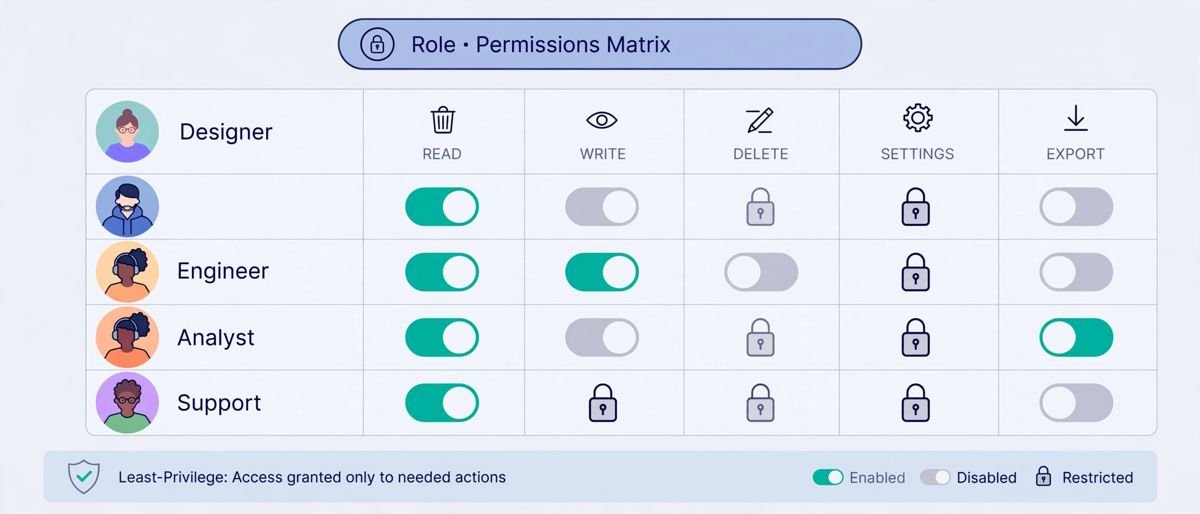
Google provides granular predefined roles. The most-used ones:
| Role | Can do | Give to |
|---|---|---|
| Admin | Everything, including user management and account settings | Founders only (1–2 people) |
| Release manager | Create releases, manage tracks, view everything release-related | Developers, release engineers |
| Marketing | Edit store listings, run listing experiments, view statistics | ASO specialists, marketers |
| Support | Reply to reviews, view user feedback | Support staff |
| Finance | View financial reports, manage orders | Accountants |
| View app information (read-only variants) | See dashboards without changing anything | Stakeholders, investors |
There are also specialized roles for policy management, developer page management, and bulk export. The golden rule: grant the narrowest role that lets someone do their job. A freelance designer needs Marketing access to upload screenshots — not Release manager access to push builds. A support agent needs review-reply permissions — not financial reports.
Common failure mode: making every team member an Admin “to keep things simple.” When that contractor’s laptop is stolen or their Gmail is phished, the attacker gets full account control — including the ability to remove you.
The invitee receives an email, accepts with their Google account, and appears in the users list. Verify acceptance — unaccepted invitations are a top cause of “I can’t access the console” support threads.
For accounts with multiple apps, you can restrict a user to specific apps: in the invitation flow, choose app permissions and select only relevant apps. Use this for client work (client A never sees client B’s apps), for contractors on single projects, and for regional teams.
Teams that ship frequently automate uploads with the Google Play Developer API. This uses service accounts, not human invitations:
With this in place, your pipeline can upload AABs, create releases, and update listings programmatically. Rotate keys annually and immediately if a key is ever exposed — an exposed service-account key with release permissions is equivalent to a compromised admin.
When someone leaves — employee, contractor, agency — run this within 24 hours:
Quarterly, audit the full users list. In our experience, the average agency account has 2–3 “ghost users” — ex-contractors whose access nobody revoked. Each is an unnecessary risk.
The table below summarises the offboarding checklist:
| Action | Detail |
|---|---|
| Remove the user | Under Setup → Users and permissions; removal is immediate |
| Check API access | Look for service accounts they created or had keys for; rotate any shared keys |
| Review the activity log | Check for unfamiliar actions in their last weeks |
| If they owned the owning Google account | Ownership can’t be transferred, so ensure at least two trusted admins exist and document the recovery path |
| Audit regularly | Audit the full users list quarterly for “ghost users” |
If you suspect any team member’s Google account was compromised — or after any phishing scare — run an emergency audit:
Then re-harden: require security keys for all admins, confirm 2FA on every invited account, and document the incident. Teams that rehearse this audit quarterly execute it in minutes during a real incident; teams that don’t improvise under pressure. Our account recovery guide covers the Google-account side of incident response.
Google’s official documentation for team management lives in the Play Console Help Center under “Manage users and permissions.”

Go to Setup → Users and permissions → Invite new users, enter their Google account email, choose the narrowest role for their job, optionally scope to specific apps, and set an expiry date for temporary members. They accept the email invitation with their own Google sign-in.
Not through the console UI — the owning Google account is permanent. The practical workaround is ensuring multiple trusted Admin users exist so the account remains manageable if the owner becomes unavailable. Plan for this at signup by choosing a durable owning account.
Release manager scoped to their specific app(s), with an access expiry date set to the contract end. They can ship builds and manage tracks without touching users, finances, or other apps. Never grant Admin to temporary contributors.
Via service accounts: create one under Setup → API access, download its JSON key, store it as a CI secret, and grant it release permissions. Your pipeline then uses the Google Play Developer API to upload AABs and manage releases programmatically.
Setup → Users and permissions, find their entry, remove. Access revokes immediately. Also rotate any API keys they touched and check the activity log. Do this within 24 hours of offboarding, every time.
A Play Console developer account run as a team — invitations instead of shared passwords, least-privilege roles, expiring contractor access, service accounts for automation — is dramatically safer and more professional than the solo-login habit most developers start with. Set it up once, audit quarterly, and offboard rigorously.
Play Console Store is an independent marketplace helping Android developers structure their Play Console accounts for team workflows — permissions design, CI/CD setup, and security hardening. Explore our Google Play services to get your account’s team setup right.