

November 14, 2026

Inside the Google Play Store Console, the section that most directly moves your install numbers isn’t Release or Quality — it’s Grow → Store presence: the store listing. Title, graphics, descriptions, and experiments are the levers of conversion, and most developers set them once and never touch them again. This guide is the listing-optimization manual: every field, the specs that matter, ASO tactics that work, and the experiments that prove what converts.
In short: Your store listing lives in Grow → Store presence: a 30-character app name, an 80-character short description, a 4,000-character full description, and correctly sized graphics. Optimise it with honest keyword placement, localisation, and A/B experiments — then refresh it quarterly, because stale listings lose installs to competitors that keep testing.
Path: App dashboard → Grow → Store presence → Main store listing.
Every graphic has strict dimension and content rules — wrong sizes bounce at upload, and misleading graphics (fake UI, non-representative imagery) are rejection triggers.
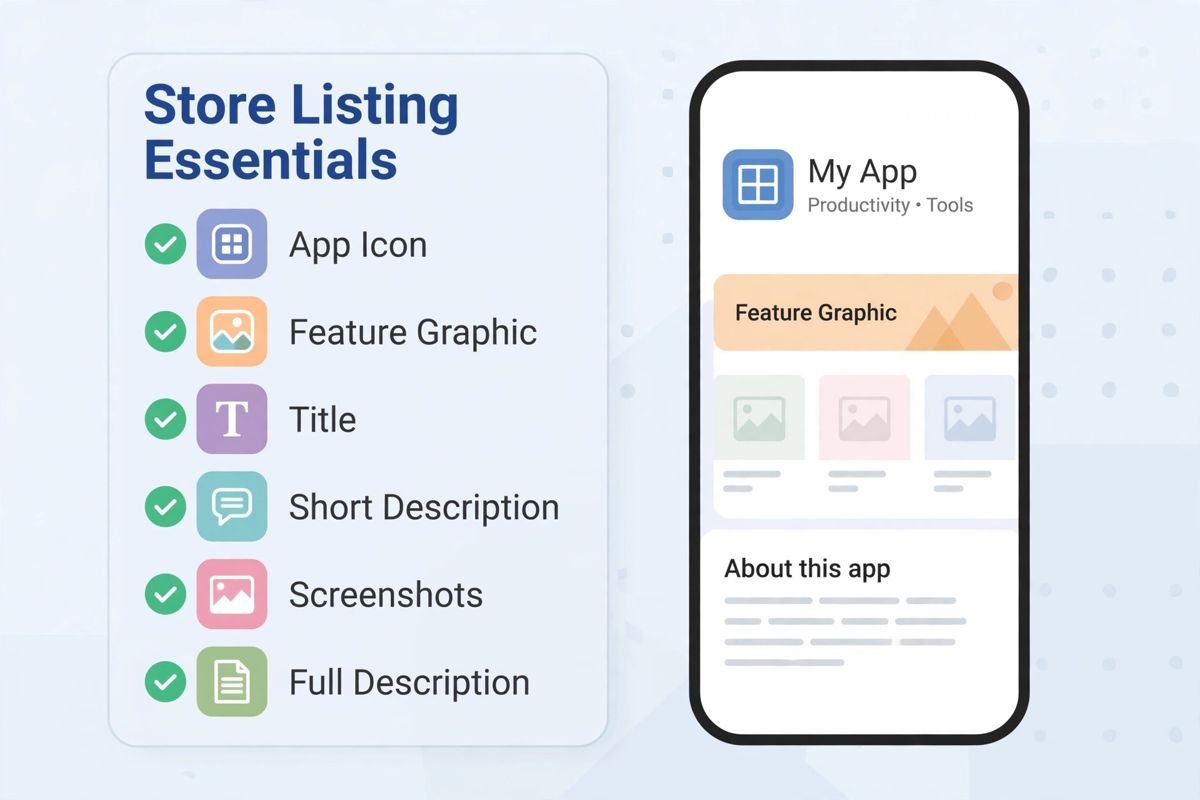
The table below summarises the listing fields and specs described above:
| Field | Limit / spec stated in the guide |
|---|---|
| App name | 30 characters |
| Short description | 80 characters |
| Full description | 4,000 characters; repeat core terms naturally 3–5 times |
| App icon | 512×512 PNG; legible at 48px |
| Feature graphic | 1024×500 |
| Screenshots | Phone (min 2, up to 8 per form factor), plus 7-inch and 10-inch tablet sets, in exact required dimensions |
| Video (optional) | YouTube link, 30–60 seconds showing real usage |
Keyword targeting without stuffing. Research what users search (your keyword mapping is the source of truth), place the primary keyword in the name and short description, support terms in the full description. Density happens naturally in honest copy — forced repetition backfires.
Localize the listing, not just the app. Translate title and short description at minimum for target markets; full localization for top revenue countries. Store listing translations are managed per-language in the console — untranslated listings in localized apps leak conversion.
Ratings drive ranking. A stable, crash-free app (watch Quality → Android vitals) plus prompt review replies compounds into the 4.3+ ratings that the algorithms favor. No shortcut substitutes for this.
Category and tags. Choose the most accurate category (App vs. Game subcategories matter for featuring and browse); add relevant tags where the console offers them. Miscategorization for visibility is a policy risk, not a tactic.
Refresh quarterly. Stale listings decay: update screenshots when the UI changes, refresh the feature graphic seasonally, and re-test descriptions after major feature launches.
Path: Grow → Store listing experiments. A/B test icons, feature graphics, descriptions, and screenshots against live traffic:
Teams that experiment quarterly compound small conversion wins into large install deltas over a year.
Grow → Pre-registration. Before launch, publish a coming-soon page: users register interest and get notified at release, converting anticipation into day-one installs — which feed ranking algorithms when it matters most. Pair with the open testing track for a pre-launch community.
At launch, the listing must be final: graphics approved, descriptions honest, data safety consistent with the build. Last-minute listing changes during review can restart the clock.
Listing honesty isn’t just ethics — it’s enforced. Our policy compliance guide covers the full rulebook, and our developer best practices round out the growth playbook.
Google’s listing specs: Play Console Help Center.
The table below summarises the listing mistakes listed above:
| Mistake | Why it matters in the guide |
|---|---|
| Keyword-stuffed or misleading descriptions | Listing honesty is enforced; see the policy compliance guide linked above |
| Screenshots showing features the app doesn’t have | Misleading graphics are rejection triggers |
| Impersonating brands in name, icon, or copy | Rejection trigger |
| Broken or placeholder privacy policy URL | Listed as a rejection-causing mistake |
| Undeclared ads or data collection contradicting the listing’s claims | Contradicts the listing’s claims |
Listings decay. Run this refresh every quarter — and a deeper one ahead of the year-end holiday season, when install volumes spike.
Creative refresh. Swap the feature graphic and first two screenshots for seasonal variants that keep your branding but feel current. Holiday-themed creative measurably lifts conversion in Q4 for most consumer categories; back-to-school (August/September) matters for education and productivity apps. Keep a versioned asset library so refreshes are assembly, not redesign.
Copy tune-up. Re-read your short description with fresh eyes: does it still describe the current app’s core value? Feature drift is real — apps gain capabilities their listings never mention. Update the full description’s feature bullets, retire claims about removed features (stale claims are deceptive-behavior risk), and re-check keyword placement against your current keyword map.
Screenshot hygiene. Every UI redesign must trigger a screenshot pass — screenshots showing an interface users won’t recognize erode trust and invite “misleading” complaints. Capture from the current release build on current OS versions; dated screenshots signal an abandoned app even when development is active.
Experiment backlog. Each refresh should launch one new store listing experiment: icon variant, screenshot order, or description angle. Quarterly experiments compound — a 3% conversion lift per quarter is a 12.5% annual gain, and the console’s experiments make it nearly free to run them. Keep a running backlog of test ideas (screenshot order swaps, icon background colors, short-description hooks, feature-graphic text vs. no text) and prioritize by expected impact; the backlog means you never start a quarter wondering what to test. Record every experiment’s hypothesis, variant, result, and decision in a shared log — institutional memory of what converts compounds faster than any single winning test. Tie experiments to the product roadmap: when a feature ships, its listing experiment ships with it. Creative and product evolving together keeps the listing truthful and the testing continuous.
Ratings reset reality check. Major updates sometimes warrant a fresh ratings push via the in-app review API timed to positive moments. Don’t manipulate — just ask satisfied users at the right time. A refreshed listing with stale 2-year-old reviews converts worse than the same listing with recent social proof.
Front-load keywords naturally in the 30-character name and 80-character short description, write honest keyword-aware full descriptions, use high-quality correctly-sized graphics, localize for target markets, and A/B test with Grow → Store listing experiments. Then sustain ratings through app stability and prompt review replies — conversion is a system, not a tweak.
Icon 512×512 PNG, feature graphic 1024×500, plus screenshot sets per form factor in the console’s specified dimensions (minimum 2 phone screenshots). Uploads failing dimension checks bounce at submission — prepare assets to spec before you start, and re-verify after every redesign.
Under Grow → Store listing experiments, you run A/B variants of icons, graphics, or descriptions against live listing traffic, measure conversion differences with statistical significance, and promote the winner to the default listing. Test one variable at a time for at least 7 days to smooth weekday and weekend behavior differences.
No — it actively hurts. Google’s review systems detect stuffed, misleading metadata as deceptive behavior, a policy violation risking rejection or suspension. Natural keyword placement inside honest, readable copy is the durable strategy; the algorithms reward relevance, not repetition.
Yes — at minimum translate the title and short description for each target market, and ideally fully localize for your top revenue countries. The console manages per-language listings separately; untranslated listings measurably leak conversion in non-English markets, and custom per-country listings let you tailor creative beyond translation.
Quarterly at minimum: refresh screenshots whenever the UI changes, update graphics seasonally, revise copy after major feature launches, and keep one experiment running. Stale listings decay in conversion even as the app improves — the listing is a living asset, not a one-time form.
The Google Play Store Console’s Grow section is your conversion laboratory: deliberate fields, honest keyword-aware copy, spec-perfect graphics, localized pages, and relentless experimentation. Most competitors set-and-forget their listings — which is exactly why consistent optimization compounds into an advantage.
Play Console Store is an independent marketplace helping Android developers optimize listings, manage releases, and stay compliant. Explore our Google Play services.